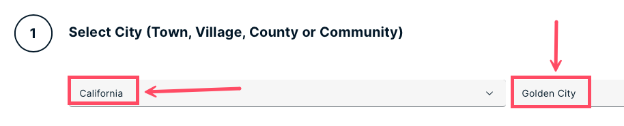
- From your dashboard, select your municipality.
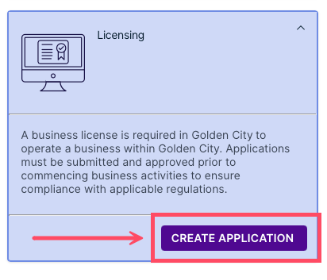
- Select the Licensing application type, then click CREATE APPLICATION.
- Enter a description of the application, then click NEXT.

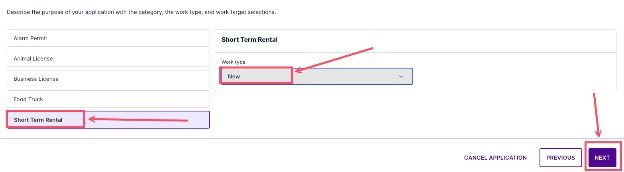
- Define the category, work type, and work target(s) for the license. Click NEXT to continue.
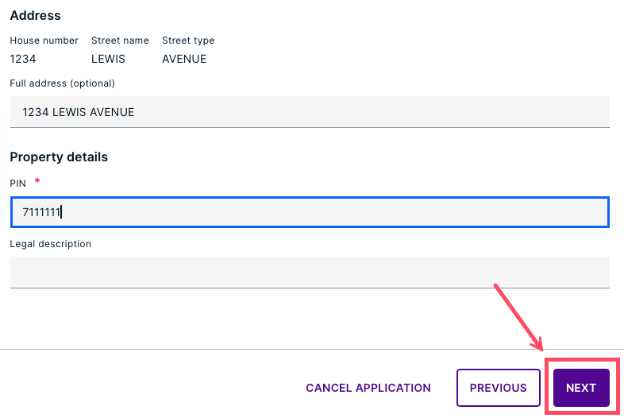
- Select a property for the application by searching or clicking a point on the map. You can also enter details manually. Once you have located the property, click NEXT.
- Add the people, businesses, and contractors involved in the application and assign all required roles. To add a new party, click the ADD button. Click NEXT to continue.
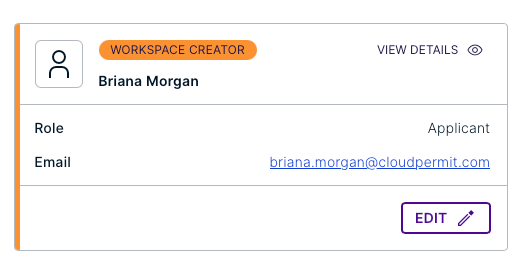
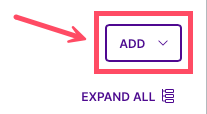
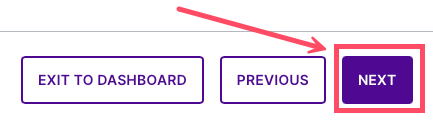
Note: If the ADD button is not lighting up for the additional party to be added, you must close the top half (Party and Role) before you can add the party. - Complete any applicable forms for the application, then click NEXT.
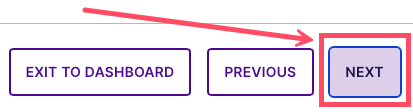
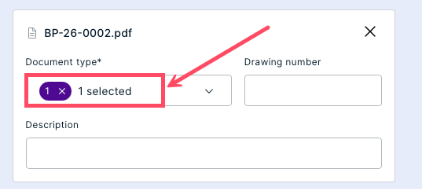
- Upload supporting attachments by dragging and dropping them or by browsing files on your computer. Add a Document type and description (optional), then click SAVE ATTACHMENTS. Click NEXT.

- Review the summary. If you are ready to continue, you can navigate to the sign-off page. For more information, check out our article about Submitting an Application.
Was this article helpful?
That’s Great!
Thank you for your feedback
Sorry! We couldn't be helpful
Thank you for your feedback
Feedback sent
We appreciate your effort and will try to fix the article