Renewing a license creates a renewal application in Cloudpermit. You can renew an active or expired license when your local government makes the renewal option available.
If your local government uses renewal reminders, Cloudpermit may email the parties associated with the license before it expires. Select Open license in the email to access the license directly.
Renew Your License
- Log in to Cloudpermit.
- In the Licensing section of your dashboard, click Search licenses.
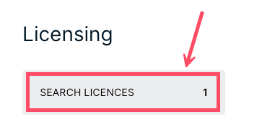
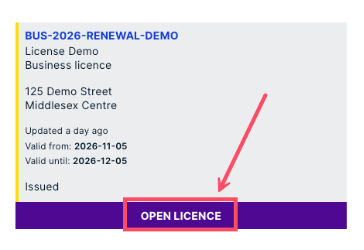
- Find the license you want to renew and click OPEN LICENSE.
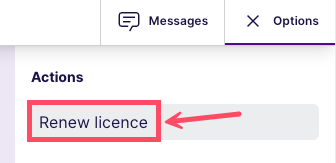
- Click Options in the upper-right corner, then click Renew License.
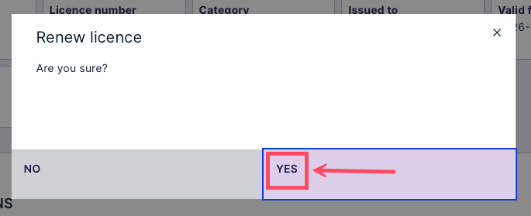
- Click Yes to create the renewal application.
- Review the renewal Overview, then click Next.
- Review the Parties and update them if necessary. Click Next.
- Complete and confirm the required Forms. Click Next.
- Review the Attachments. Add any required files or replace documents that are no longer current. Click Next.
- Review the Summary and complete any items marked as incomplete.
- Select Submit Application.
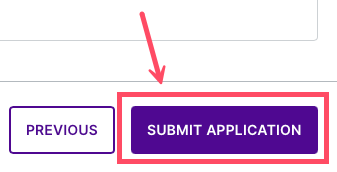
Cloudpermit sends a confirmation email after you submit the renewal application. Your local government can then review it.
Note: If Renew license is unavailable, the license may be outside the renewal period set by your local government, or a renewal application may already be in progress. Contact your local government if you need assistance.
Was this article helpful?
That’s Great!
Thank you for your feedback
Sorry! We couldn't be helpful
Thank you for your feedback
Feedback sent
We appreciate your effort and will try to fix the article