In the Work and Construction phase of your project with an existing building permit, you may need to make changes to your original plans. To do this, you must apply for plans resubmission through a supplemental building permit application. This article will guide you through the process.
Initiating Plans Resubmission
Ensure your project is in the Work & Construction workspace, and the status of your application is Permit Issued.
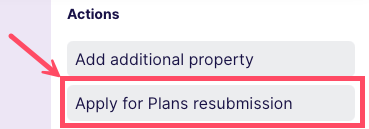
From the More Actions drop-down list at the top of the workspace header, select Apply for plans resubmission.
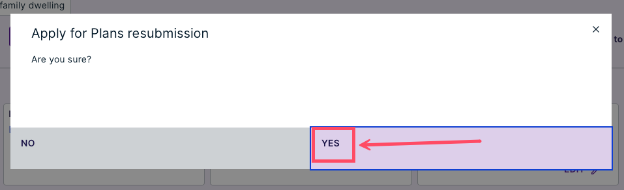
Confirm your intention by choosing Yes.
Creating a Supplemental Application
The data from your original building permit application will be copied into the draft supplemental application, which starts in the Draft step.
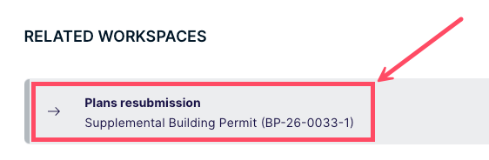
All the current workspaces related to the supplemental application can be found under Related Workspaces.
Completing the Supplemental Application
The Required Tasks progress bar will guide you through the necessary steps before submitting the application to the municipal building department.
In the example below, the progress bar indicates that the application form must be completed.
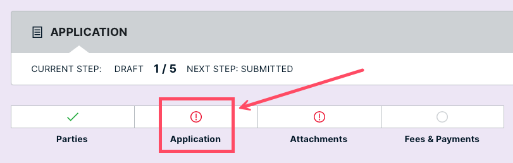
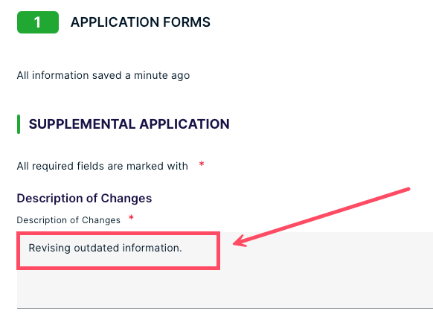
Navigate to the APPLICATION FORMS section and expand it. Add your Description of Changes.
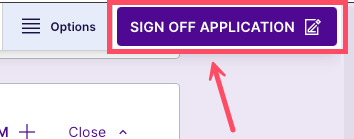
In the top-right corner of the screen, click SIGN OFF APPLICATION.
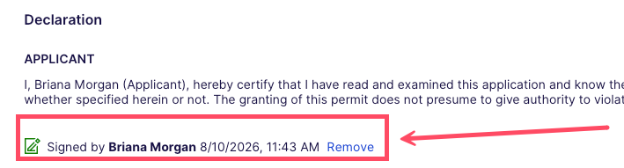
Your supplemental application is now digitally signed.
The Progress Bar at the top of the application workspace will show that you have completed all the required actions.
Inviting Building Professionals (If Necessary)
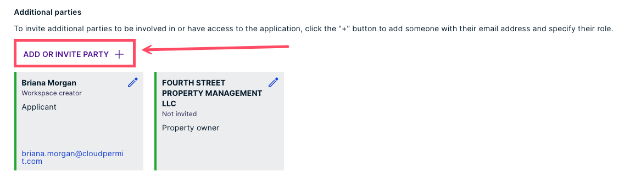
If needed, navigate to the Parties to the Application section to invite building professionals to collaborate on your application. More information on Parties, Roles, and Permissions can be found here.
Click Add or Invite Party to send invitations to collaborate.
Uploading Attachments (If Necessary)
You can upload attachments that you believe will help others understand your building plans under the Attachments section. More information on Uploading Attachments to the Application can be found here.

Submitting the Supplemental Application
Your application is now ready for submission. If you wish to remove your supplemental application, you can do so by clicking Delete Application, which will deactivate it in the Cloudpermit database.
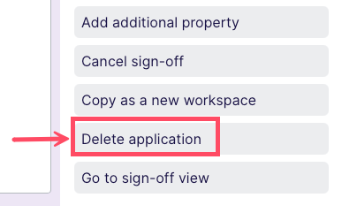
Otherwise, press the Submit Application button to send it to the municipal building department.
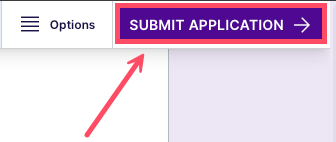
Your supplemental application has been submitted to your municipality's building department, and they will commence the review process. If you need further assistance or have any questions, please refer to our support resources.
Was this article helpful?
That’s Great!
Thank you for your feedback
Sorry! We couldn't be helpful
Thank you for your feedback
Feedback sent
We appreciate your effort and will try to fix the article