Managing parties is an essential part of collaborating on Cloudpermit applications. Applicants can invite stakeholders to participate, assign one or more roles, and control what each party can do within the application by granting additional permissions.
Add Parties to an Application
All stakeholders can access the Parties to the Application section within the application workspace. From here, applicants can invite new participants, assign roles, and manage existing parties.
Invite a Party by Email
1. Navigate to Parties to the Application.
2. Click ADD PARTY.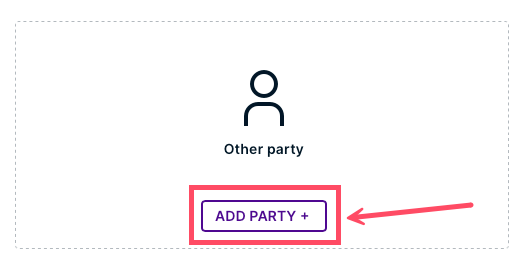
3. Select the party type.

4. Select a Role for the invitee.
5. Fill out the invitee's Personal details, then click ADD.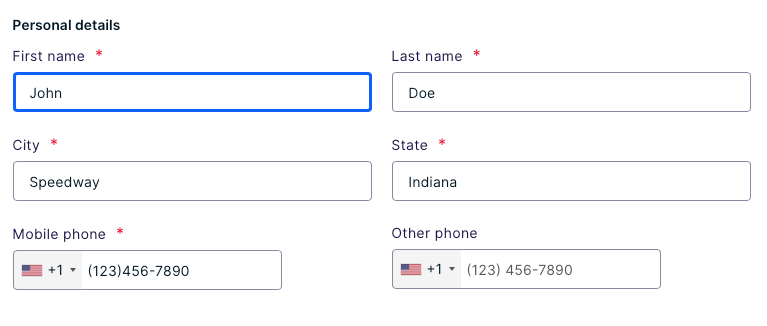
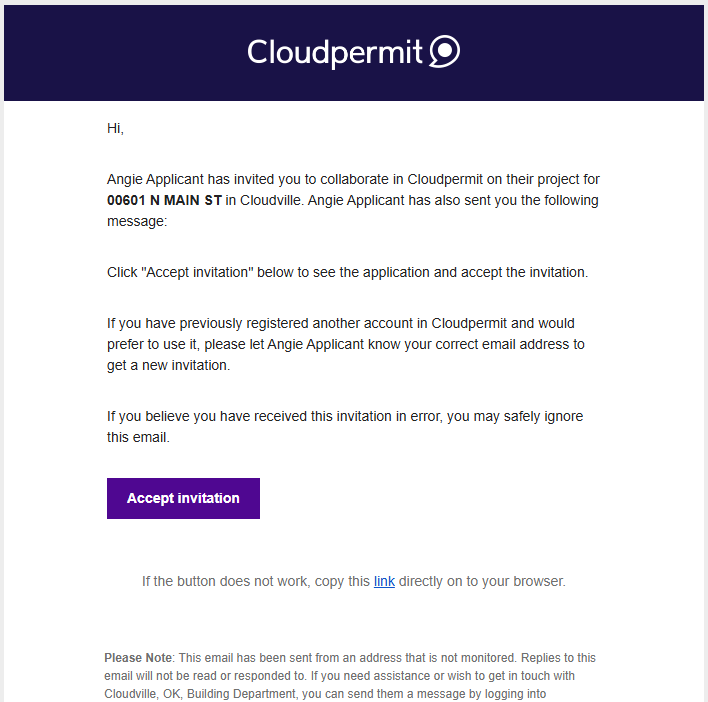
The invited party will receive an email with instructions to join the application. Once they accept the invitation and sign in to Cloudpermit, they can begin collaborating based on their assigned permissions.
Assign Roles
Each party can be assigned one or more roles within an application. Roles define a participant’s relationship to the application and determine their default level of access.
Note: Once you have invited a party via email, you can only remove them, not edit them. If they have already accepted the invite, they cannot be removed OR edited.
To assign or update roles:
1. Navigate to Parties to the Application section.
2. Select the Edit (pencil) icon on the party card.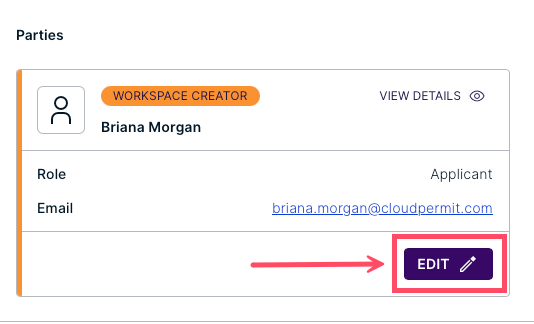
3. Click SELECT ROLE(S).
4. Select one or more roles for the party. Your changes will save automatically.
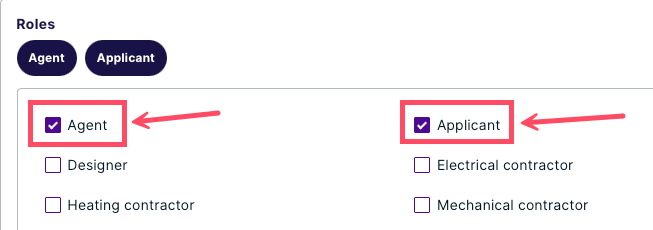
6. Click CLOSE at the bottom of the module.

Note: One party can have multiple roles within the same application.
Manage Existing Parties
Applicants can update the list of collaborators throughout the application process.
Remove a Party
To remove a party:
1. Open Parties to the Application.
2. Find your desired party, then click the pencil icon.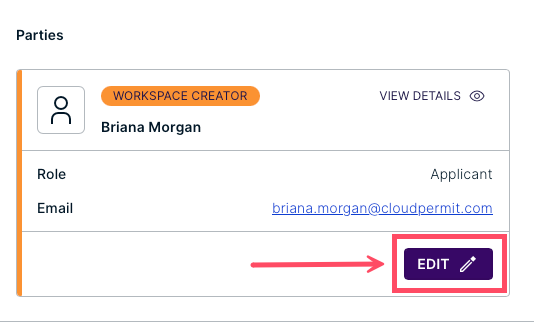
3. Click Remove Party. Then, click REMOVE to confirm your choice.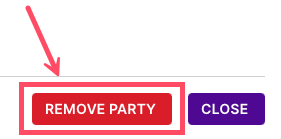

For more information about removing parties, see our article How to Remove Parties from a Workspace.
Was this article helpful?
That’s Great!
Thank you for your feedback
Sorry! We couldn't be helpful
Thank you for your feedback
Feedback sent
We appreciate your effort and will try to fix the article