Cloudpermit’s AI assistant, the NoVa chatbot, helps applicants, contractors, and staff navigate application processes more efficiently. NoVa is an embedded support tool within Cloudpermit that allows you to access relevant help content without leaving your current Cloudpermit session.
Unlike a general-purpose AI chatbot that searches the internet or generates answers from unknown sources, NoVa provides assistance using Cloudpermit’s Support Knowledge Base. It uses natural language processing (NLP) to understand questions and locate relevant support content, allowing you to find information quickly and in plain language.
NoVa is also multilingual. When asked a question in another language (such as French, Finnish, Mandarin, or Spanish), it can respond in that language, helping municipalities serve a broader range of users.
What NoVa Can Help With
NoVa is designed to answer questions about:
· How to use Cloudpermit features and workflows
· Application submission processes
· Permit, license, planning, and enforcement workflows
· Application statuses and next steps
· User account functions
· Common configuration and process questions
· Navigation within Cloudpermit
For example, you can ask:
· “How do I submit a permit application?”
· “What does this application status mean?”
· “How do I assign a reviewer?”
· “How do I schedule an inspection?”
· “How do I pay an application fee?”
What NoVa Does Not Do
While NoVa can be a valuable self-service resource, it is not a replacement for municipal staff or professional judgment.
NoVa does NOT:
· Make decisions on permit or license approvals
· Interpret local bylaws, ordinances, or regulations
· Provide legal or medical advice
· Modify application data or perform actions on users’ behalf
· Replace municipal review processes
· Access information outside of its configured knowledge sources (e.g. Cloudpermit’s knowledge base or your uploaded documents)
o For more information, read our article How to Upload Documents to Improve NoVa Responses.
If a question requires a municipality-specific interpretation, policy decision, or professional review, please contact the appropriate municipal department.
How NoVa Generates Responses
When you submit a question, NoVa analyzes the request using natural language processing to identify your intent and locate relevant information within Cloudpermit’s knowledge base.
Rather than requiring you to search through multiple support articles manually, NoVa can summarize and present the most relevant information directly within the chat.
Note: The quality of responses depends on the information available in the knowledge base. If the required information does not exist or is not sufficiently clear, NoVa may not provide a complete answer.
Understanding AI-Generated Responses
Like any AI-powered tool, NoVa may occasionally misunderstand a question or provide an incomplete response.
For this reason:
· You should verify important information before making decisions.
· Municipal policies and regulations should always take precedence over chatbot responses.
· Staff should rely on official procedures and documentation when performing regulatory functions.
· You can rephrase questions if the initial response is not helpful.
NoVa is intended to assist you, not replace human expertise.
Accessing the Chatbot
To open the chatbot, do one of the following:
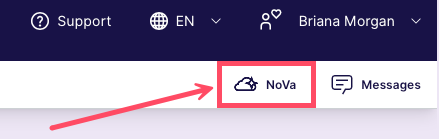
· Click the NoVa button in the top-right corner of the screen.
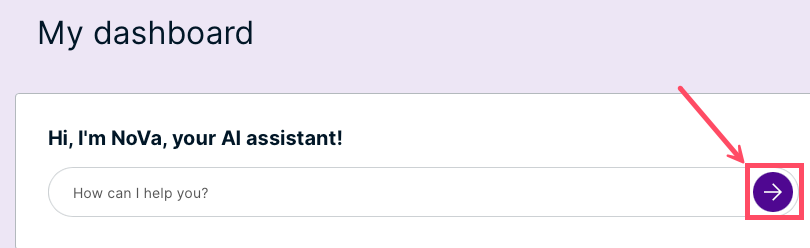
· On the dashboard, type your question into the search bar, then click the arrow button.
Chat Interface Behavior
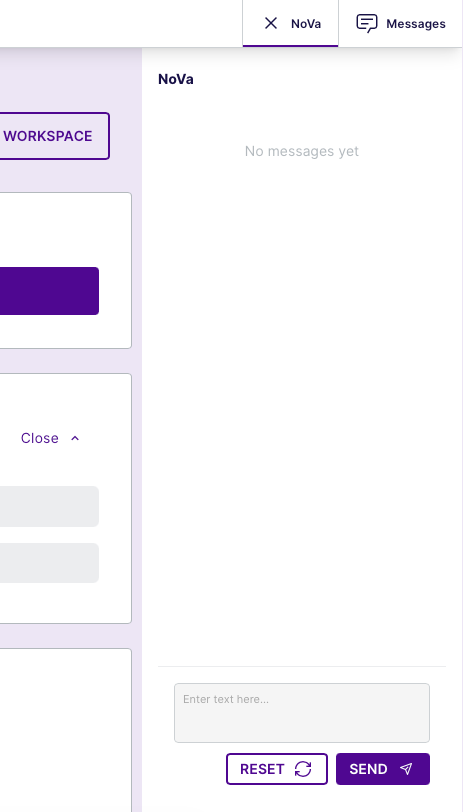
The chatbot opens as a right-side panel (drawer).
The panel is designed to:
· Remain visible while interacting with the main application
· Support parallel workflows, allowing you to continue working while chatting
Panel Structure
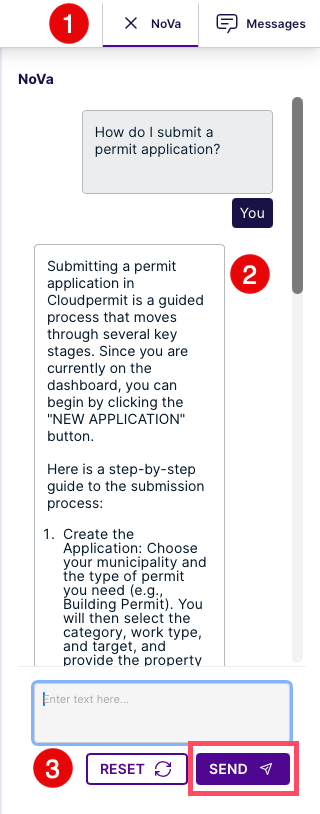
The chat panel consists of three persistent sections:
1. Header (Top)
· Click X to close the panel
2. Message Area (Center)
· Displays the conversation thread
· Becomes scrollable as messages accumulate
3. Input Field (Bottom)
· Always visible
· Used to submit questions and requests
Interacting with the Chatbot
Submitting Queries
· Enter your question in the input field at the bottom of the panel.
· Press Enter or use the Send action.
· The chatbot processes your query and returns a response based on available knowledge base content.
Example Queries
· “How do I submit a permit application?”
· “What does this application status mean?”
· “How do I assign a reviewer?”
· “How do I create a contractor registration?”
· “Where can I find inspection results?”
Response Behavior
· Responses are generated using content from the Cloudpermit Support Knowledge Base or your uploaded documents.
· The chatbot uses natural language processing to interpret your intent and identify relevant content.
· Answers are optimized to provide concise, direct guidance.
· In some cases, responses may include references to support articles or recommended next steps.
Conversation Management
· The message area supports vertical scrolling for longer conversations.
· Previous messages remain available during the active session.
· You can continue asking follow-up questions to clarify information.
· The chatbot session remains active while the panel is open.
When No Answer Is Found
If NoVa cannot find relevant information, or if it cannot confidently answer the question, it may recommend alternative support options.
These may include:
· Rephrasing the question
· Reviewing related support documentation
· Contacting municipal staff
· Submitting a support ticket
For complex, municipality-specific, or policy-related questions, you should contact the appropriate authority directly.
Closing the Chatbot
The panel can be dismissed by:
· Clicking the NoVa button again, or
· Using the close control within the panel (X)
The chatbot can be reopened at any time during the session.
Best Practices
To get the best results from NoVa:
· Use clear, specific language when asking questions.
· Reference specific actions, statuses, or features when possible.
· Ask one question at a time when troubleshooting.
· Rephrase questions if the initial response is not helpful.
· Verify important regulatory or policy-related information with municipal staff.
· Use NoVa as a helpful guide, while recognizing that final decisions and interpretations remain the responsibility of the municipality.
By combining AI-powered assistance with municipal expertise, NoVa helps you find information faster while maintaining the oversight, accountability, and decision-making authority of municipal staff.
Was this article helpful?
That’s Great!
Thank you for your feedback
Sorry! We couldn't be helpful
Thank you for your feedback
Feedback sent
We appreciate your effort and will try to fix the article