During a building inspection, a qualified inspector thoroughly examines your construction. This inspection includes all major systems, including the foundation, plumbing, electrical, roof, heating, and air conditioning.
To speed up this process, applicants and municipal building authorities can access the Inspections feature from the building application workspace. By using this feature, you can choose the inspection type, date, and time for your application type.
The municipal building department determines the required inspections for each type of building application. Because Cloudpermit has these inspections preconfigured for each available kind of application, applicants will always request the appropriate inspections for their projects.
Typically, the inspection request arises during the project's Work & Construction phase. Applicants have a list of required inspections included in the Inspections section of the application workspace. You can select the desired inspection and set the date and time before requesting an inspection from your municipal department.
If your desired inspection is not included in your application, contact your municipal building department.
Creating an Inspection Request
To create an inspection request, proceed as follows:
- Navigate to the Work & Construction workspace, then scroll down to the Inspections section. This view is comprised of all required inspections for your project.
- Select the desired inspection type, then click Request inspection.

- Choose the date and time for your inspection. Enter a message for the inspector in the Additional information field if needed (optional). Then, click Create Inspection Request.
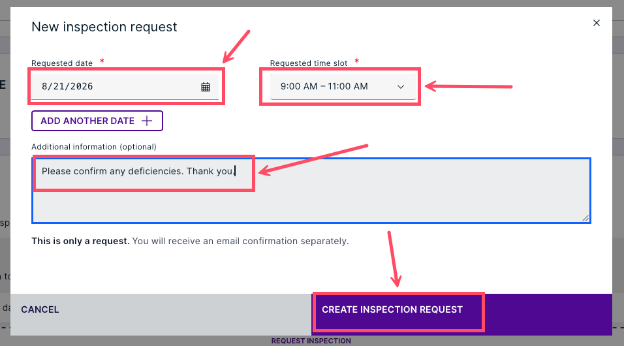
- Your inspection request has now been submitted to your municipality’s building department, where it will be assigned to a qualified inspector. The inspection request will remain unconfirmed until the assigned inspector confirms it. You can only change the date and time or cancel the inspection before it has been confirmed.

Modify the Date and Time of an Inspection
To change the date and time of your inspection, take these steps:
- Locate your desired inspection.
- Click the MODIFY REQUEST button.

- Click the CHANGE DATE button.
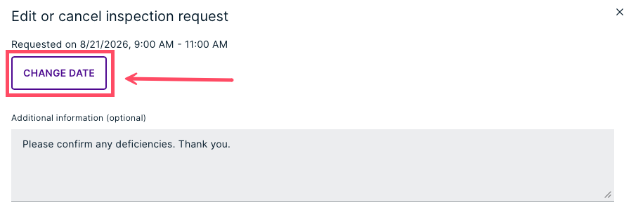
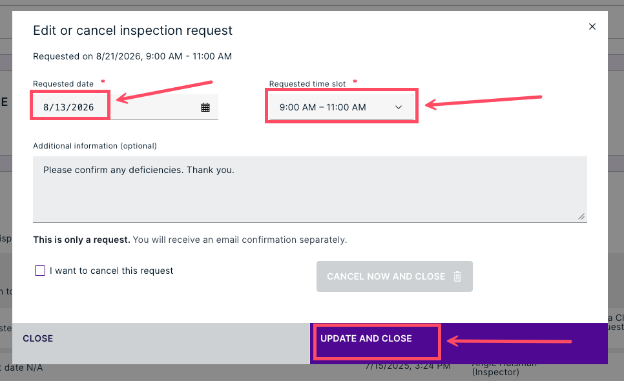
- Select a new date and time for the inspection, then click UPDATE AND CLOSE.
Cancel an Inspection
To cancel an inspection before it has been confirmed, proceed as follows:
- Locate your desired inspection.
- Click the MODIFY REQUEST button.

- Check the box beside I want to cancel this request. Then, click CANCEL NOW AND CLOSE.
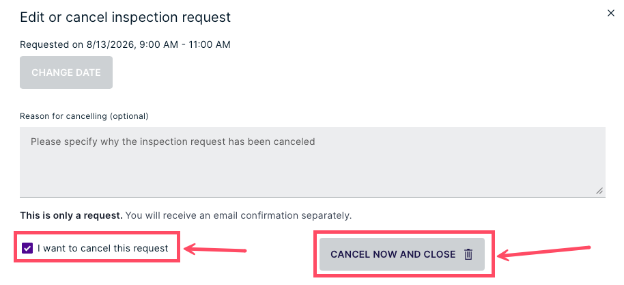
- Your cancelled inspection will appear in the list as CANCELLED.

Confirming an Inspection Request
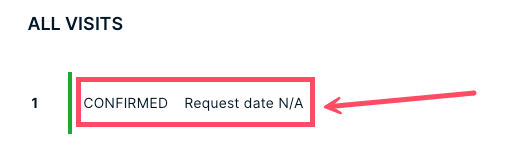
Once you have requested an inspection, it will show as “unconfirmed.” Once it has been dispatched to the inspector’s work queue, its status will change to “confirmed.” You can still cancel the inspection, but you can no longer reschedule it.

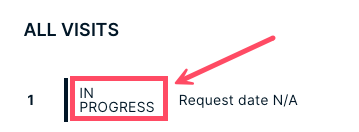
Inspection in Progress
Once the inspection has begun, the status of the inspection request changes to “in progress.”
To enter the inspection view, click OPEN.
In this view, you can monitor the progress of the inspection on-site, including any deficiencies, remarks, etc.
Was this article helpful?
That’s Great!
Thank you for your feedback
Sorry! We couldn't be helpful
Thank you for your feedback
Feedback sent
We appreciate your effort and will try to fix the article