Keeping your contractor registration up to date is essential to continue working within your municipality. This guide walks you through the step-by-step process of renewing your contractor registration in Cloudpermit—from creating your application to submitting it for review. Whether you update an existing registration or renew for a new term, completing these steps accurately will help Cloudpermit process your application without delays.
Step 1: Create an Application
- Log in to Cloudpermit.
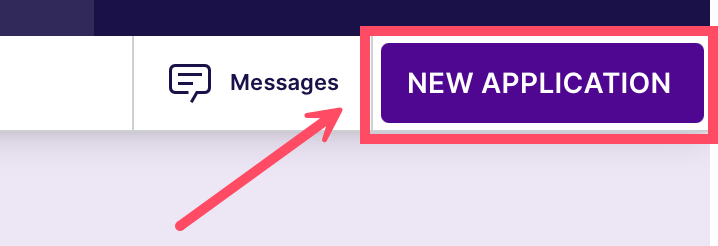
- Click the NEW APPLICATION button in the top-right corner of the screen.
- Select your City (Town, Village, County or Community).

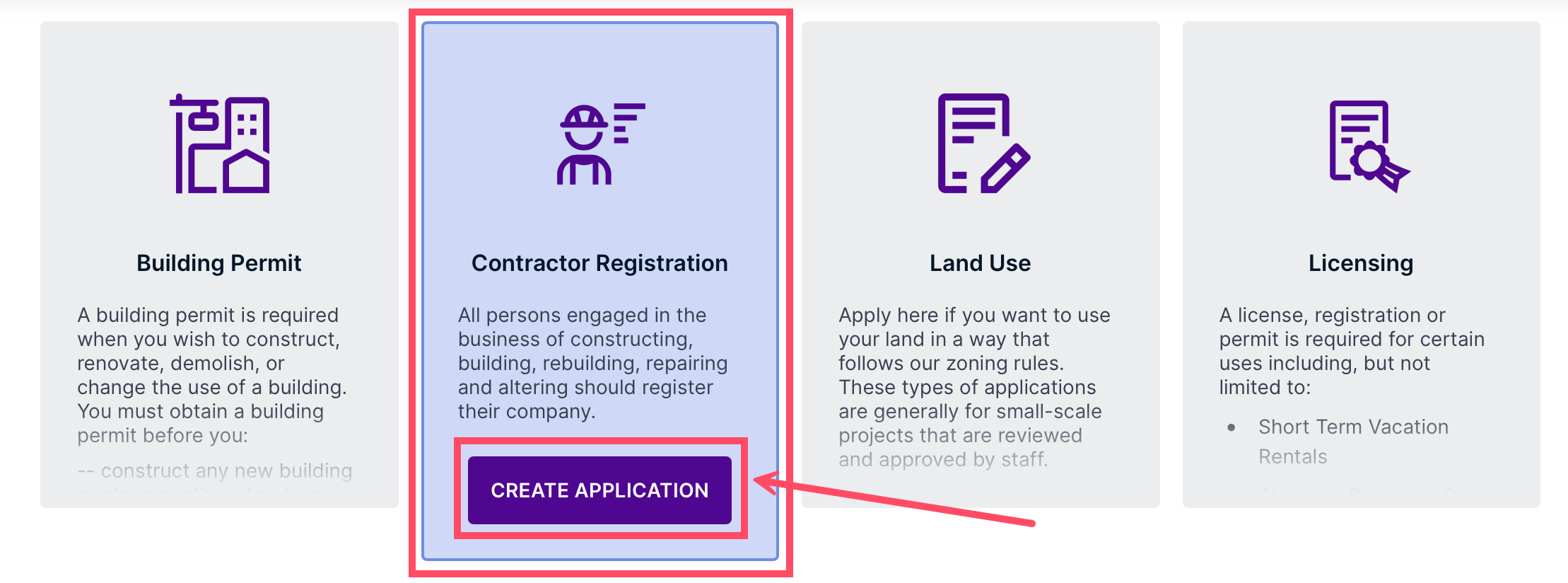
- Select your type of application. Choose Contractor Registration, then click the CREATE APPLICATION button.
Step 2: Choose Registration and Trade Types
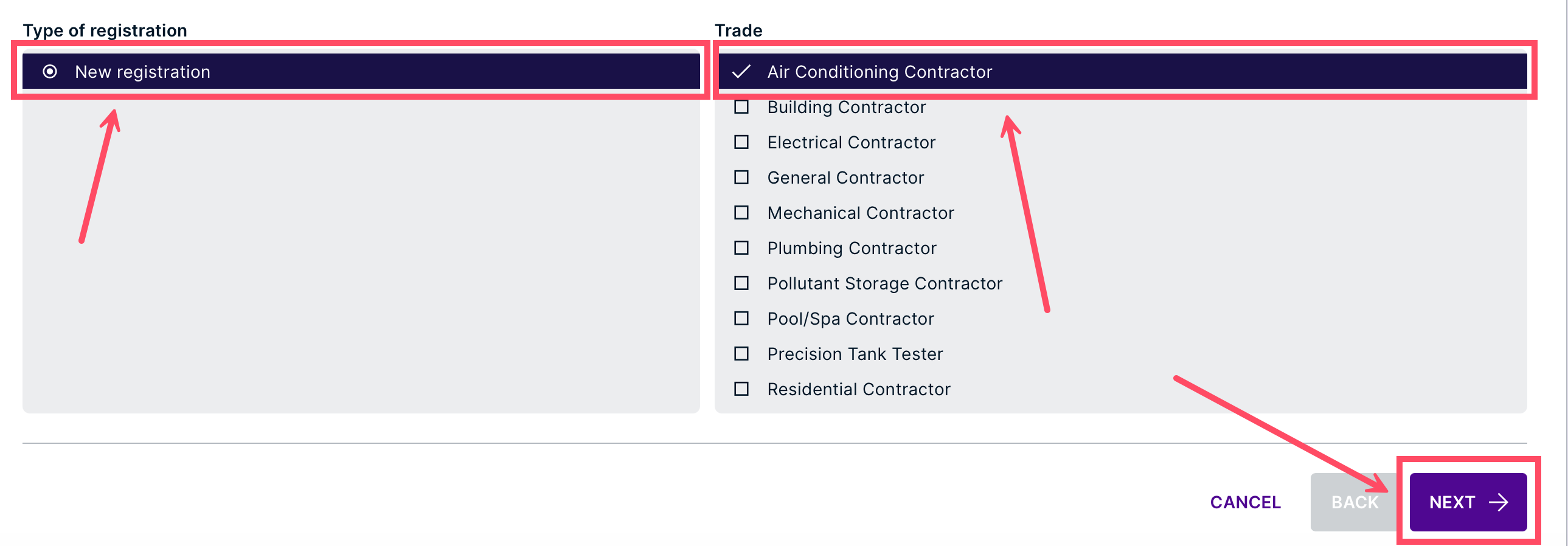
- Select the type of registration and trades for your application.
- Click each registration type to view details.
- Click NEXT.
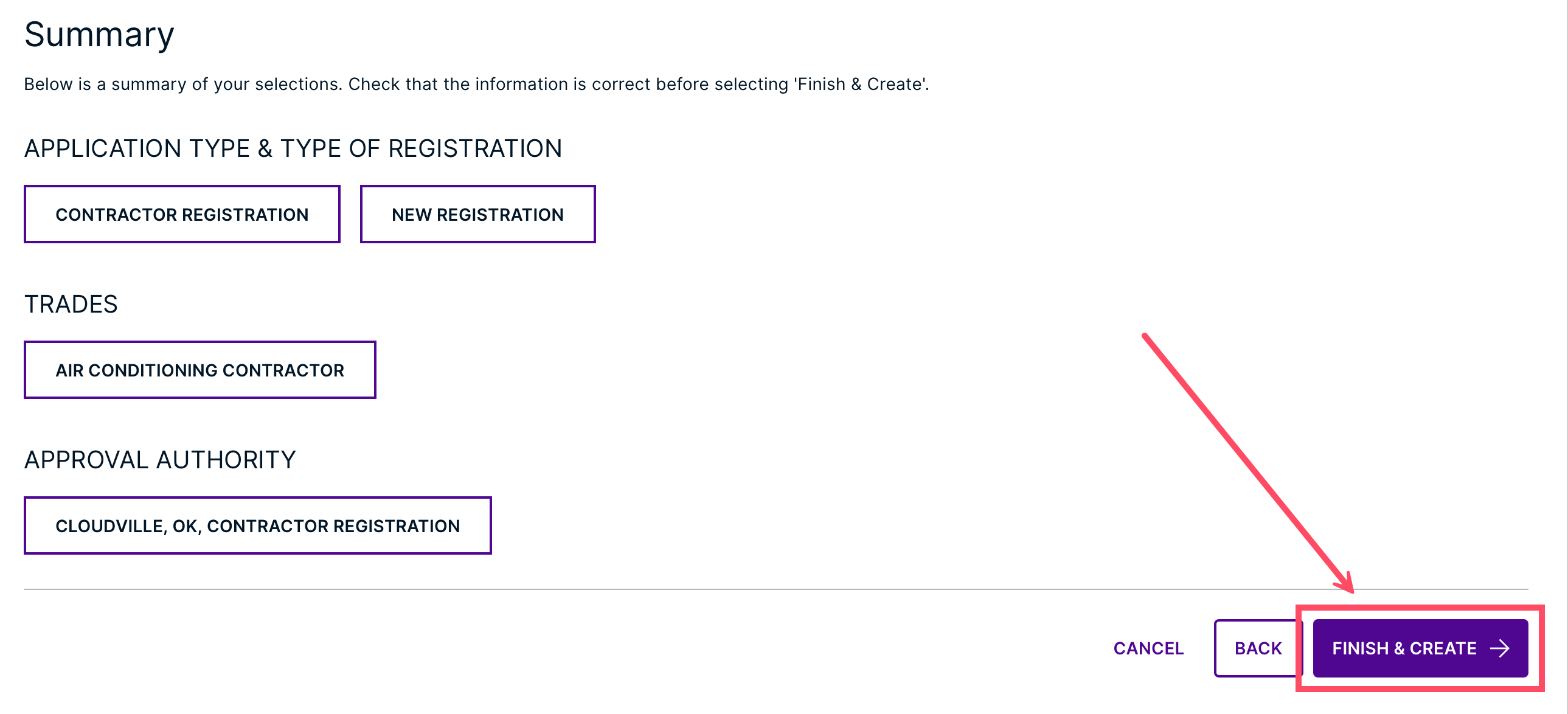
- Review the Summary, then click FINISH & CREATE.
Step 3: Complete the Application
- In the BONDS section (if applicable), associate or create a bond. For more information, please see our guide on How to Associate a Bond with an Application. Otherwise, proceed to the next step.
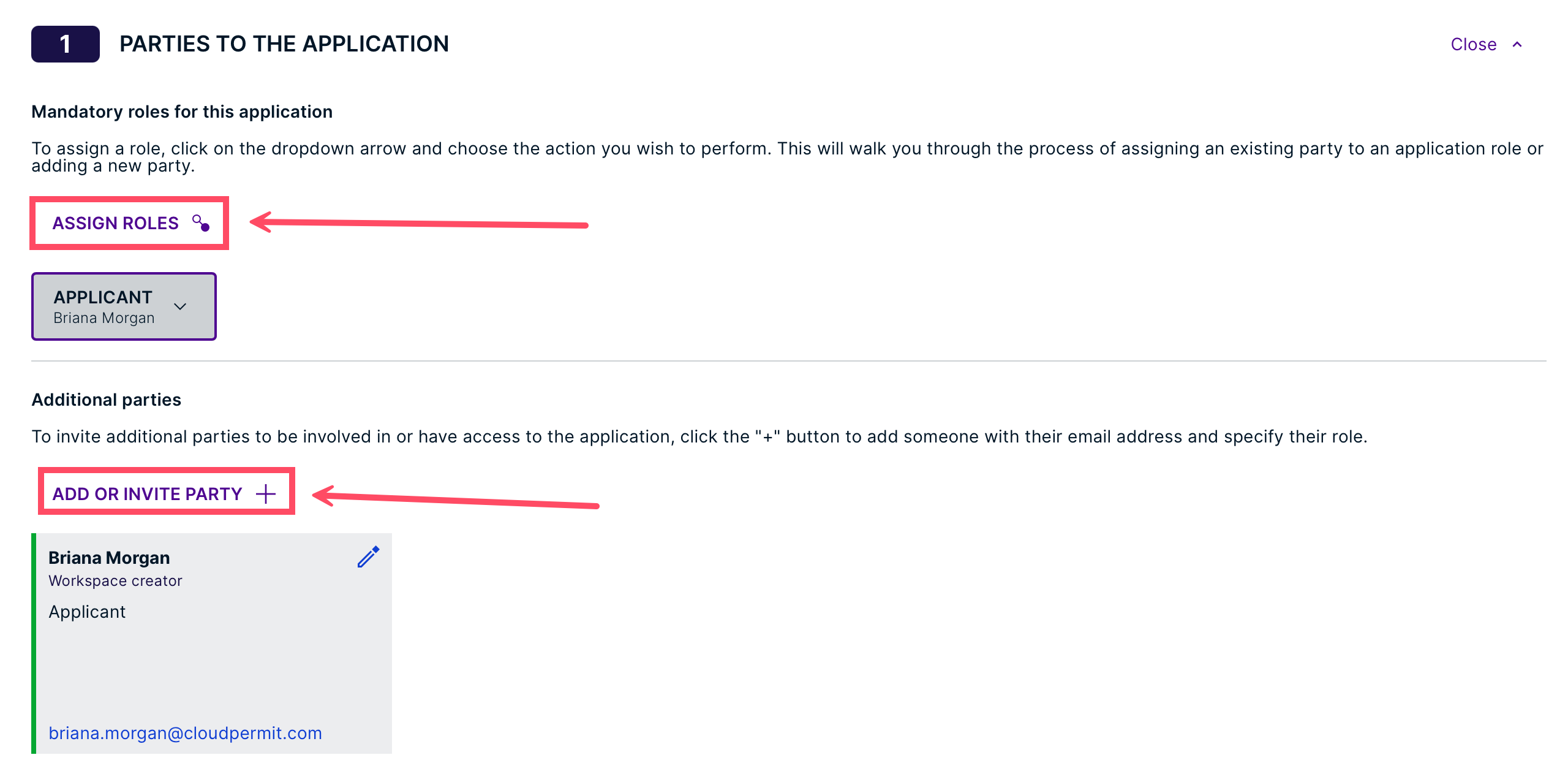
- Select PARTIES TO THE APPLICATION and assign roles or invite additional users.
- Note: Once an applicant has been added via email, only the applicant can complete the sign-off process
- Note: Once an applicant has been added via email, only the applicant can complete the sign-off process
- Fill out the APPLICATION FORMS.

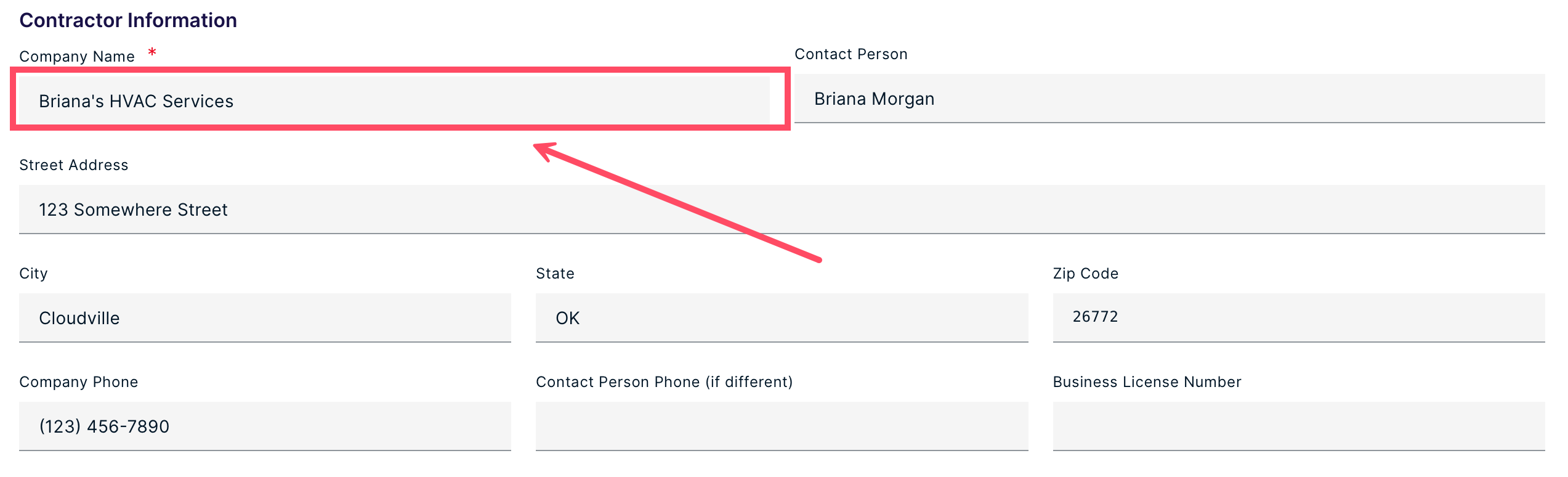
- Provide the required Contractor Information.
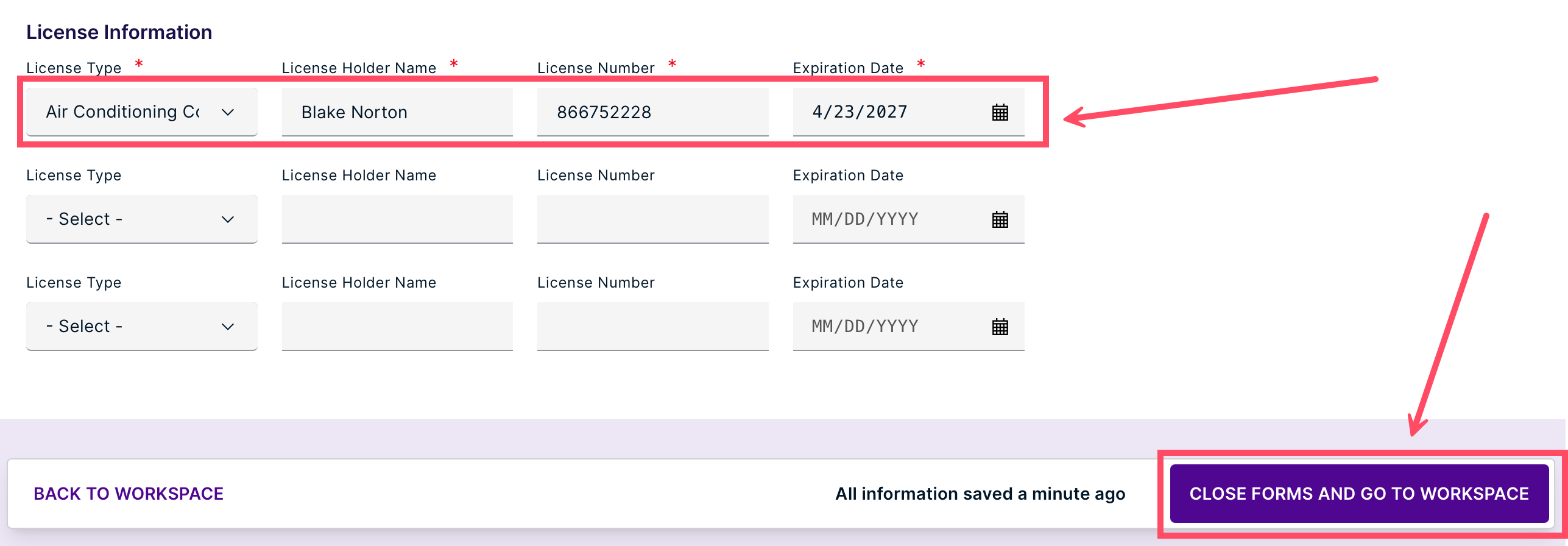
- Complete the License Information, then click CLOSE FORMS AND GO TO WORKSPACE.
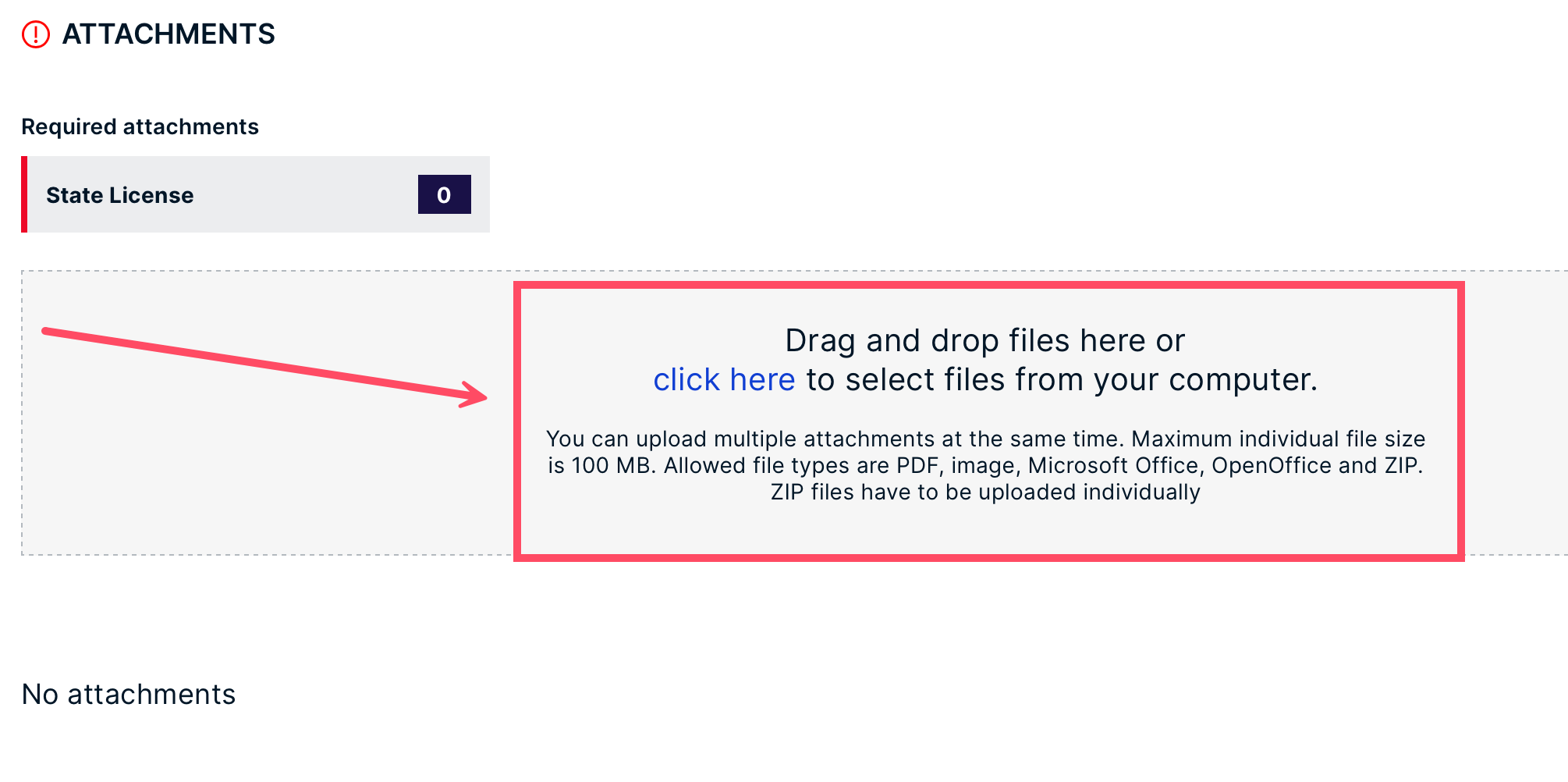
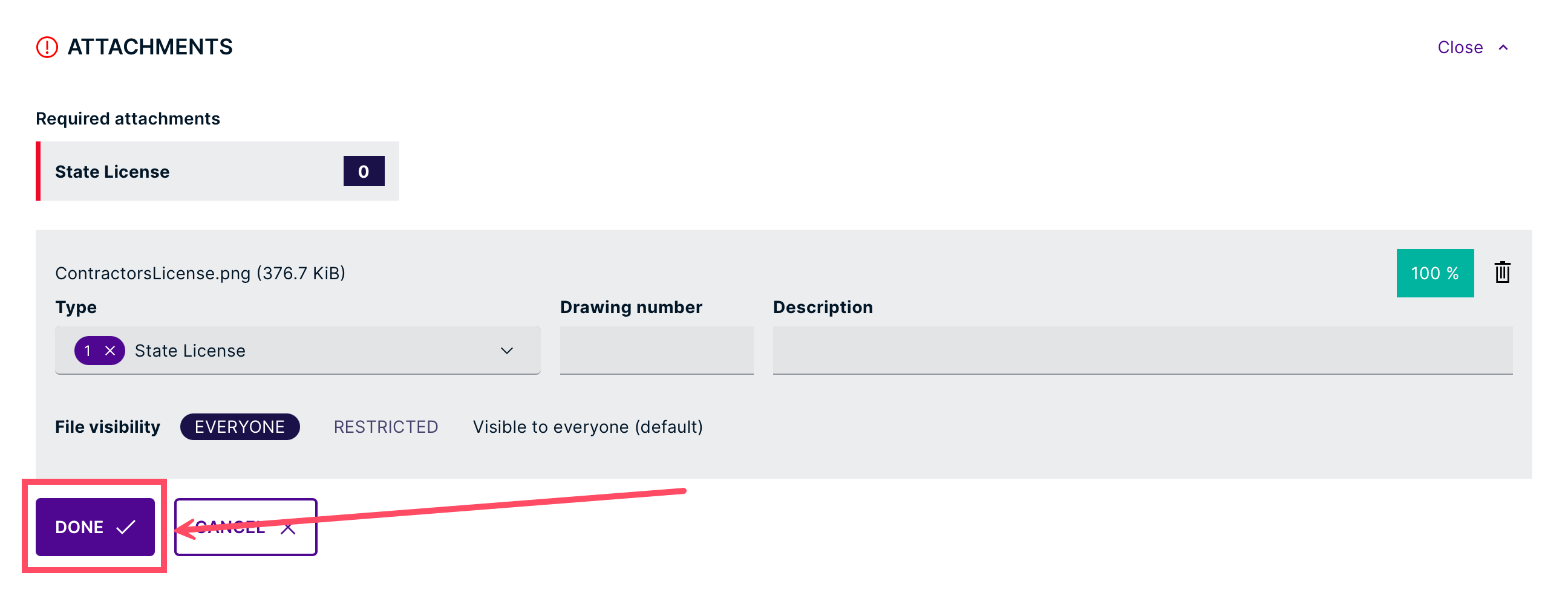
- Upload your ATTACHMENTS, including required documents, then click DONE.
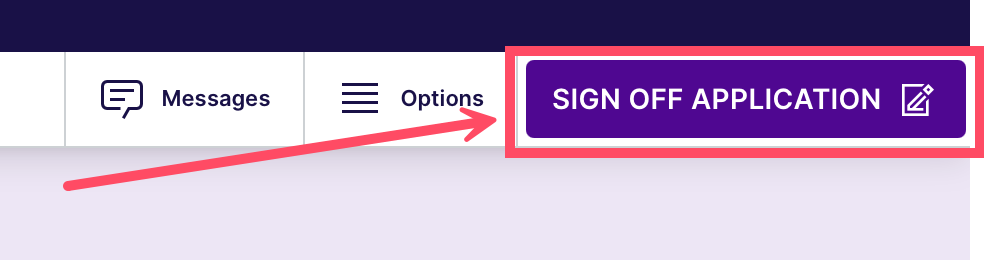
- Click the SIGN OFF APPLICATION button.
Step 4: Sign Off for Contractor Registration
- Review the summary of your application.
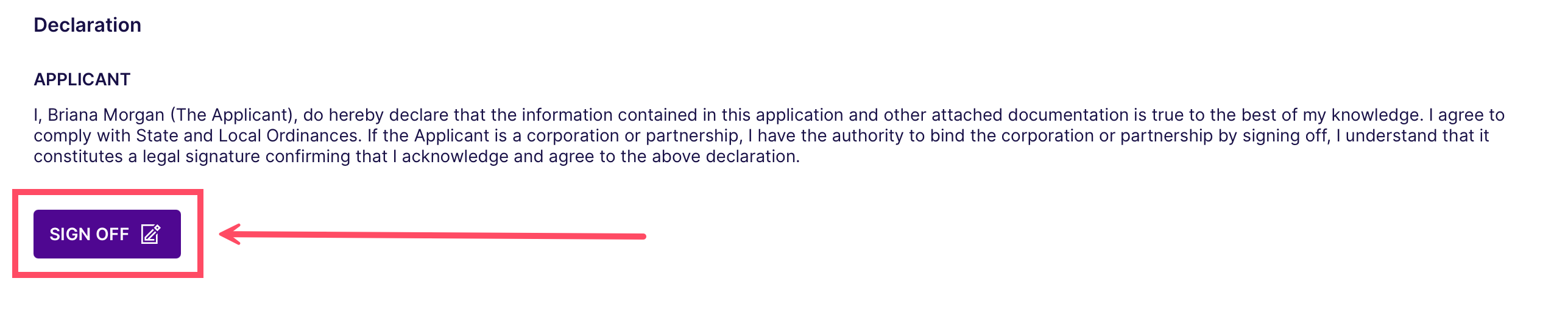
- Scroll to the Declaration and click SIGN OFF.
- Click SUBMIT APPLICATION.
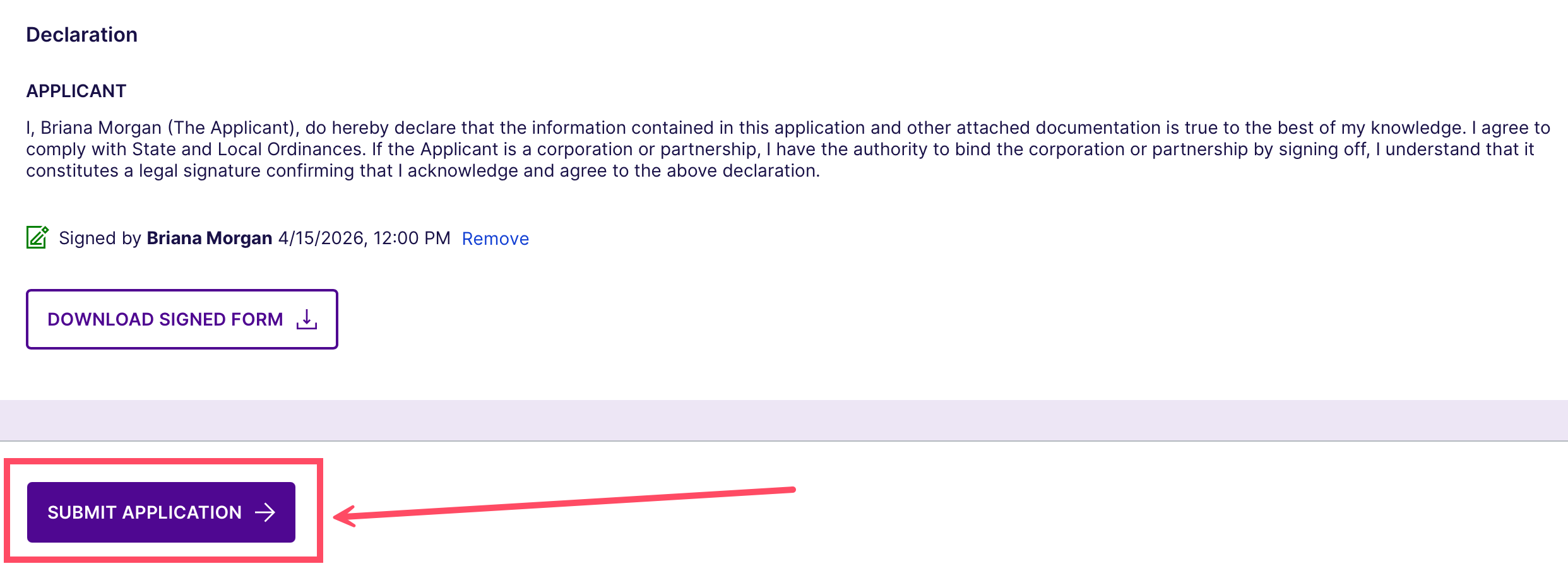
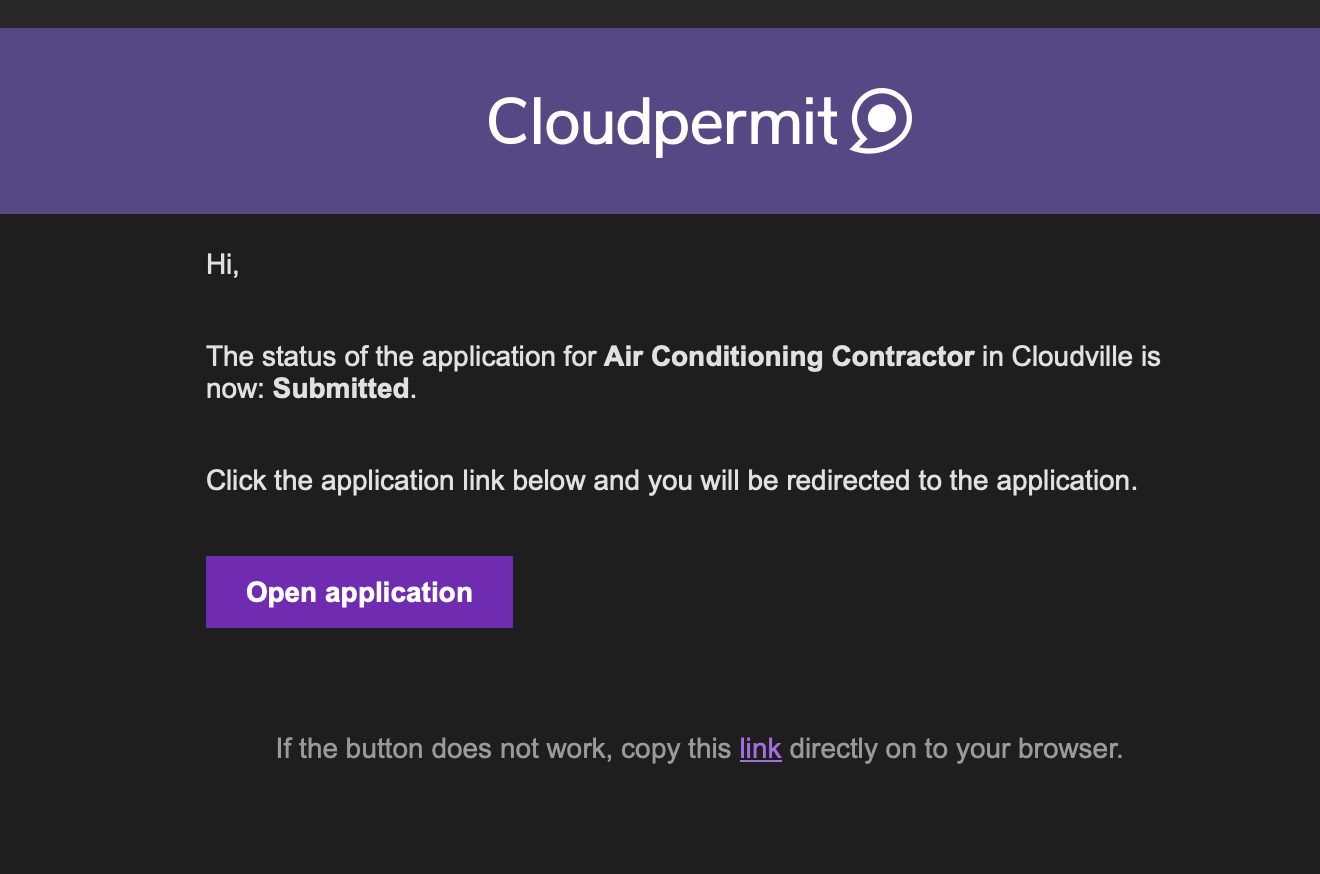
Once submitted, your application will go into review. You will also receive an email confirmation with the application status.
Need Additional Help?
If you have any more questions about submitting an application or contractor registration, please contact Cloudpermit support.
Was this article helpful?
That’s Great!
Thank you for your feedback
Sorry! We couldn't be helpful
Thank you for your feedback
Feedback sent
We appreciate your effort and will try to fix the article