Associating a bond with an application in Cloudpermit ensures that required financial guarantees—such as surety bonds—are properly linked to the permit or registration being processed. This is often required for contractor registrations or specific permit types, depending on your municipality’s regulations.
Note: If you have not yet created your application, refer to our How to Renew Your Contractor Registration article for step-by-step instructions.
Before You Begin
- Log in to Cloudpermit.
- Open the application workspace where the bond needs to be added.
- Confirm whether the bond already exists in the system or needs to be created.
Step 1: Associate an Existing Bond
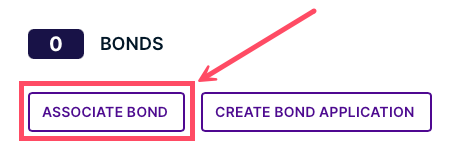
- In your application workspace, locate the BONDS section. If the bond you want to associate already exists, click the ASSOCIATE BOND button.
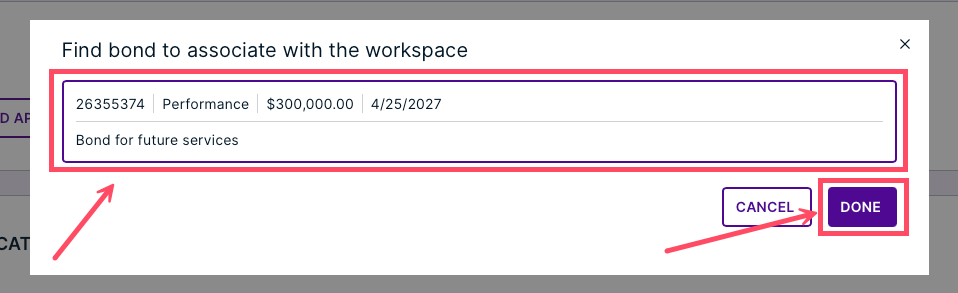
- Search for and select the appropriate bond from the list.
- Note: Only active and available bonds will appear in the list.
- Once you have selected your bond, click DONE.
Step 2: Create a New Bond Application (If Needed)
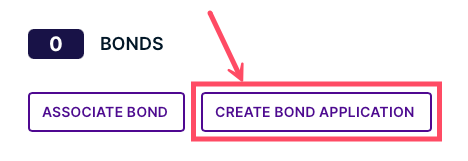
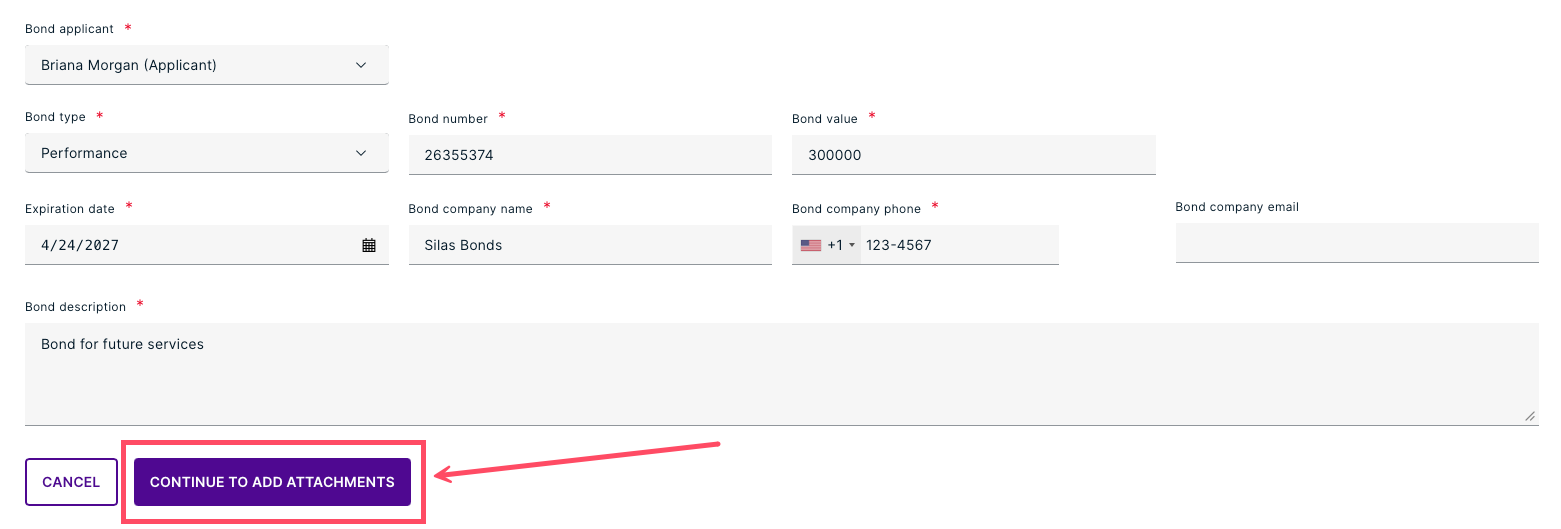
- If there are no existing bonds to associate with the application, click the CREATE BOND APPLICATION button. Fill out the form, then click CONTINUE TO ADD ATTACHMENTS.
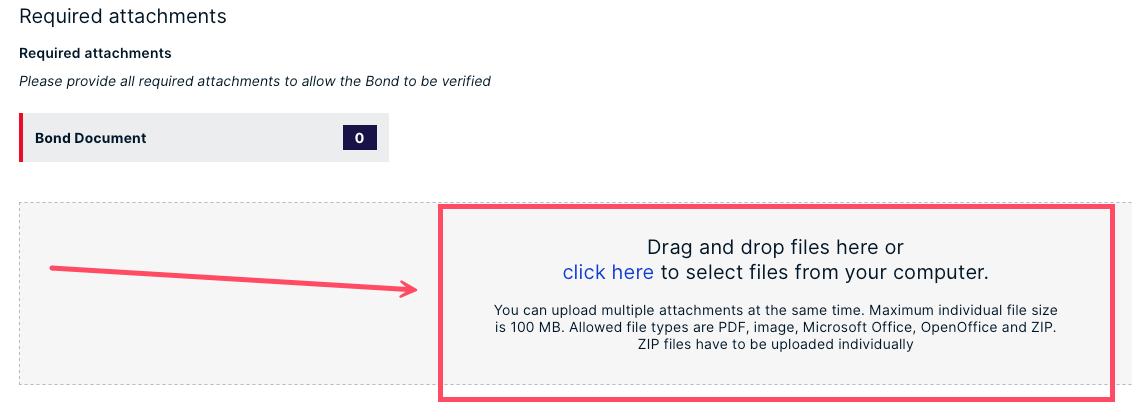
- Upload your bond document.
- Drag and drop the file into the upload area, or
- Click to browse and upload from your computer.
- Once you have uploaded your document, click COMPLETE SETUP.
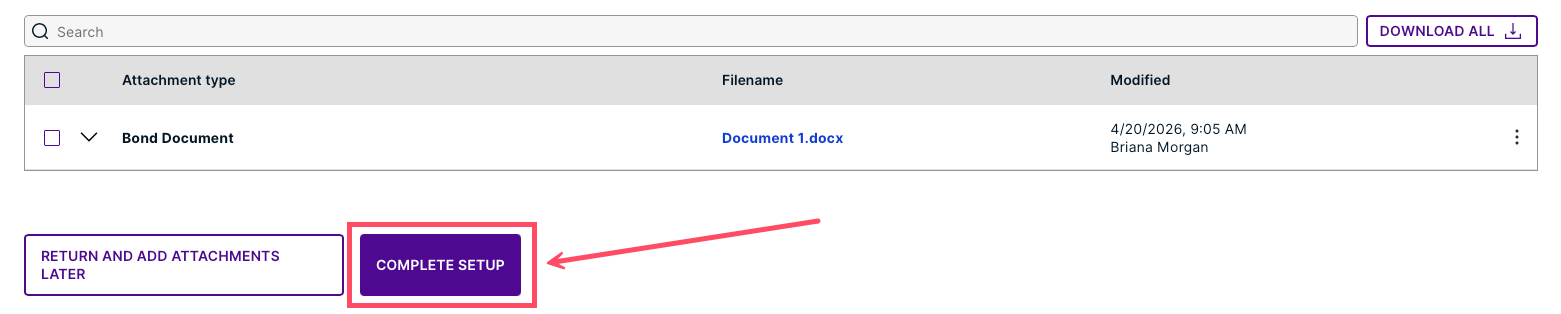
The bond will now be associated with your application and visible in the BONDS section.
After You Associate a Bond
- The bond is now linked to your application and will be included in the review process.
- Municipal staff can verify the bond as part of application approval.
- You may be notified if additional information or updates are required.
Best Practices
- Double-check that the correct bond is selected before completing setup.
- Ensure uploaded documents are clear and up to date.
- Use consistent naming for bonds to make them easier to find later.
Need Help?
If you have questions about bonds or run into issues associating one with your application, please contact Cloudpermit support.
Was this article helpful?
That’s Great!
Thank you for your feedback
Sorry! We couldn't be helpful
Thank you for your feedback
Feedback sent
We appreciate your effort and will try to fix the article