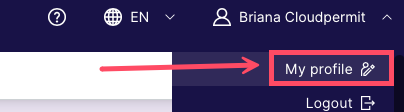
Cloudpermit allows professional users to add licenses to their personal data in the My profile section in Cloudpermit. The My profile is accessible from the Dashboard header.
If you are a professional user, you can add all your licenses, including company BCIN, company registration number, individual BCIN, license number, and registration number. Only users who have checked off the box "Professional Users" in the My profile can add multiple licenses and registrations.
This tutorial will show how to add licenses to My profile.
- Navigate to My profile in the Cloudpermit header.
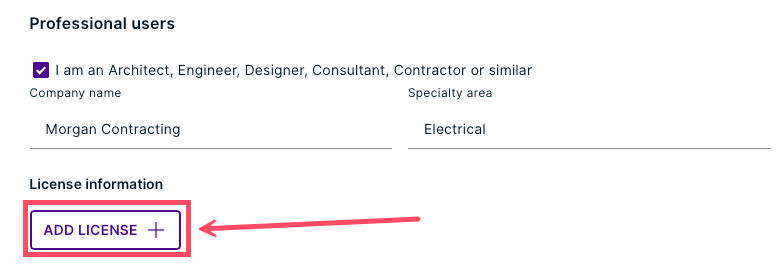
- Go to the Professional user's section. Select the check box I am Architect, Engineer, BCIN Designer, Consultant, Contractor, or similar.
- Fill out company and specialty area (optional).
- Scroll down to the License Information section. Then, click the ADD LICENSE button.
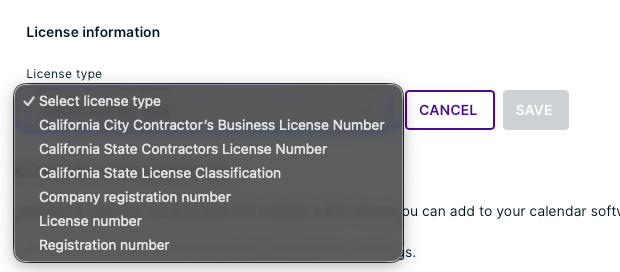
- Select a License Type from the drop-down menu.
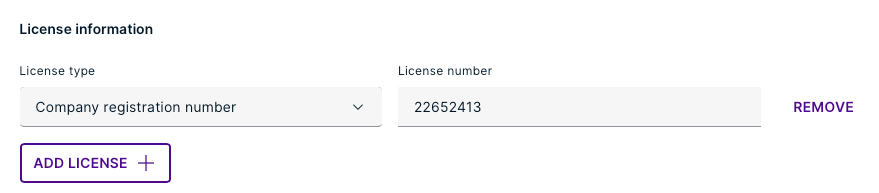
- Enter the license number in the text field. Then, click SAVE.

- Your license is now under the License Information section.
- To return to your Dashboard, click the < Back button at the top of the page.

Was this article helpful?
That’s Great!
Thank you for your feedback
Sorry! We couldn't be helpful
Thank you for your feedback
Feedback sent
We appreciate your effort and will try to fix the article