If you want to log in to Cloudpermit but have forgotten your password, you will need to reset it. For more information on how to log in to Cloudpermit, check out our Logging into Cloudpermit as a Registered User article.
Step 1: Navigate to Cloudpermit.com
- Open your preferred web browser (Chrome, Edge, Safari, or Firefox).
- Navigate to your municipality's custom URL. For more information, please read our article about Managing Municipal Portal Content and Messaging.
- Press Enter to load the login page.
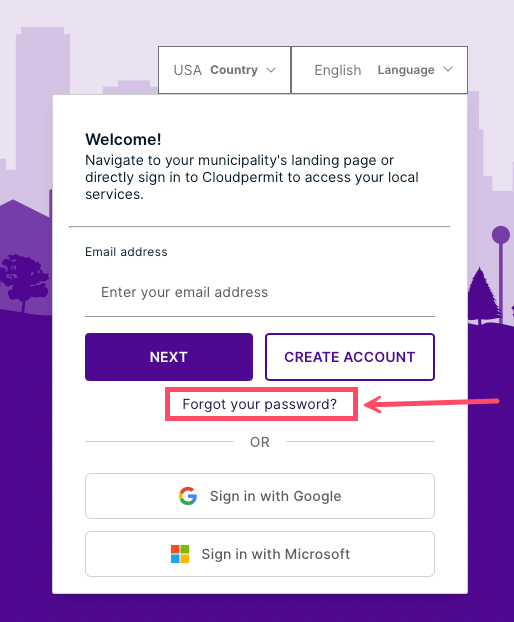
Step 2: Select Forgot Password
- On the password entry screen, click Forgot Password?
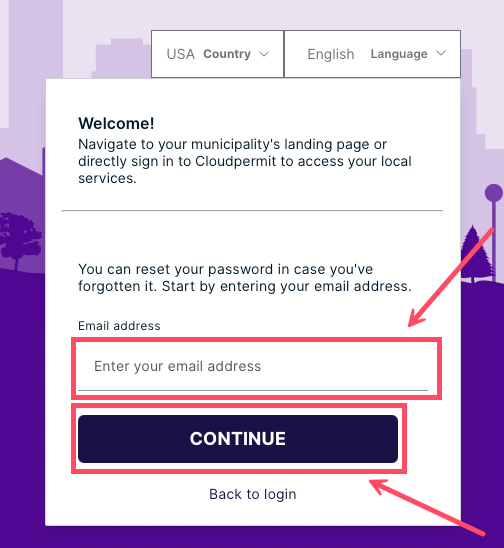
- Enter your registered email address, then click CONTINUE.
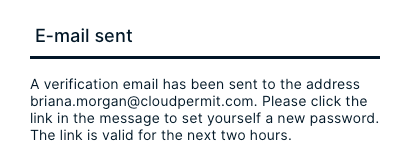
You should then see the following message:
Step 3: Reset Your Password
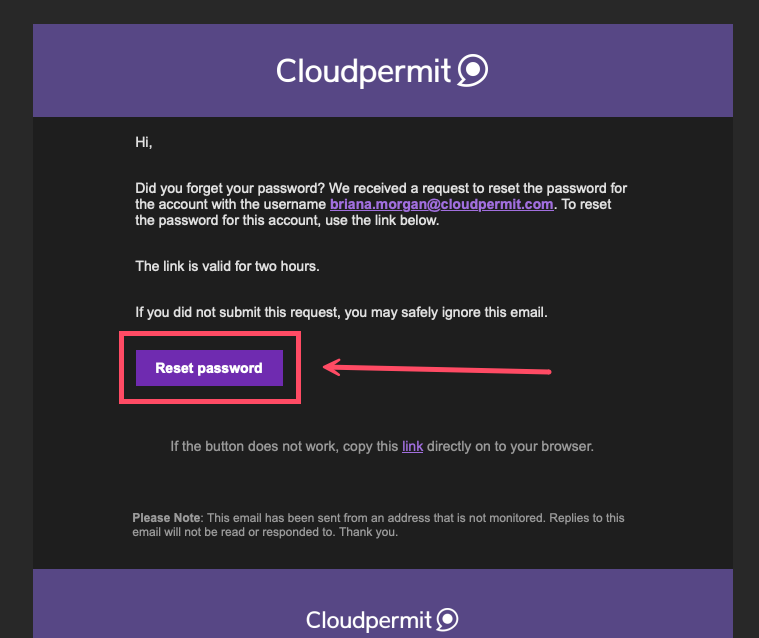
- Check your inbox for a password reset email from Cloudpermit. If you do not see the email, check your spam or junk folder.
- Open the password reset email.
- Click the Reset password link provided in the email.
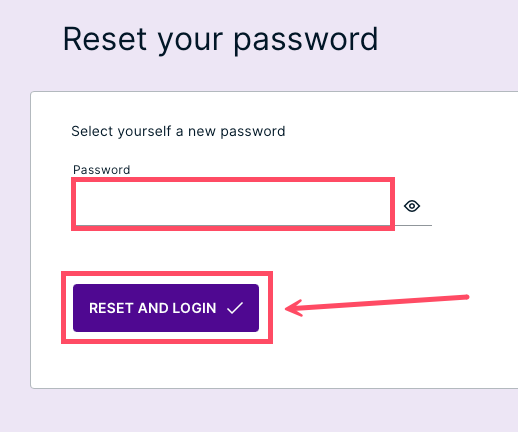
- Enter your new password.
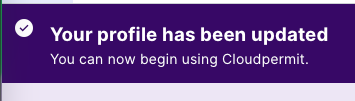
- Click RESET AND LOGIN to complete the reset.
Troubleshooting Password Reset Issues
Did Not Receive Reset Email
Ensure you entered the correct email address. Check your spam or junk folder. If the issue persists, try requesting another reset email.
Reset Link Expired
Password reset links may expire after a certain period. If your link is no longer valid, repeat the reset process to receive a new one.
Password Requirements Not Met
Ensure your new password meets the required security criteria (e.g., minimum length, special characters, etc.).
Need Additional Help?
If you continue to experience issues resetting your password, contact Cloudpermit support.
Was this article helpful?
That’s Great!
Thank you for your feedback
Sorry! We couldn't be helpful
Thank you for your feedback
Feedback sent
We appreciate your effort and will try to fix the article