This guide walks you through how to access your Cloudpermit account and troubleshoot common login issues.
Step 1: Navigate to the Cloudpermit Login Page
- Open your preferred web browser (Chrome, Edge, Safari, or Firefox).
- Navigate to your municipality's custom URL. For more information, please read our article about How to Configure Website and Portal Branding in Cloudpermit.
- Press Enter to load the login page.
Step 2: Enter Your Credentials
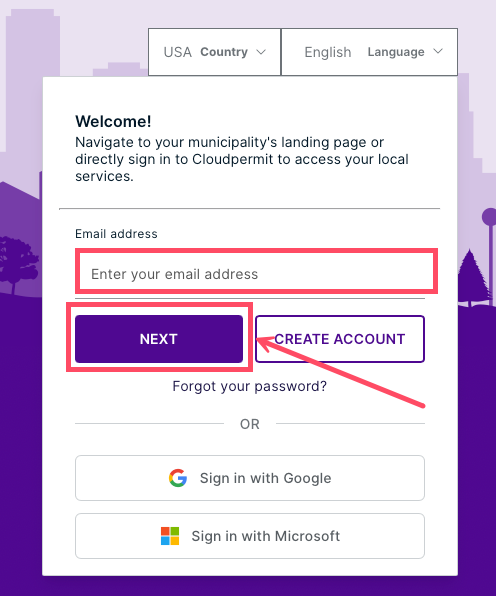
- In the Email Address field, enter your registered email.
- Click NEXT to continue.
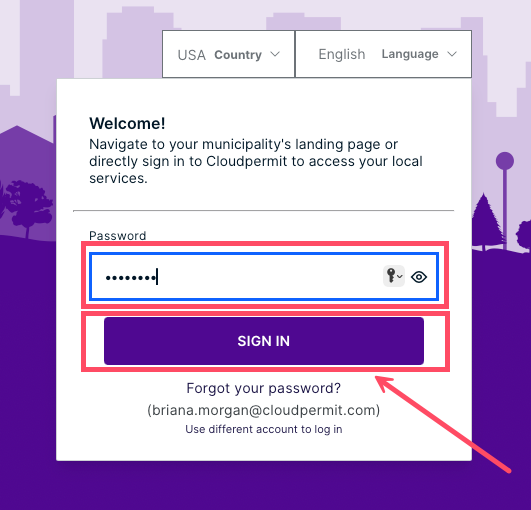
- In the Password field, enter your password.
- Click SIGN IN to continue.
Step 3: Access Your Dashboard
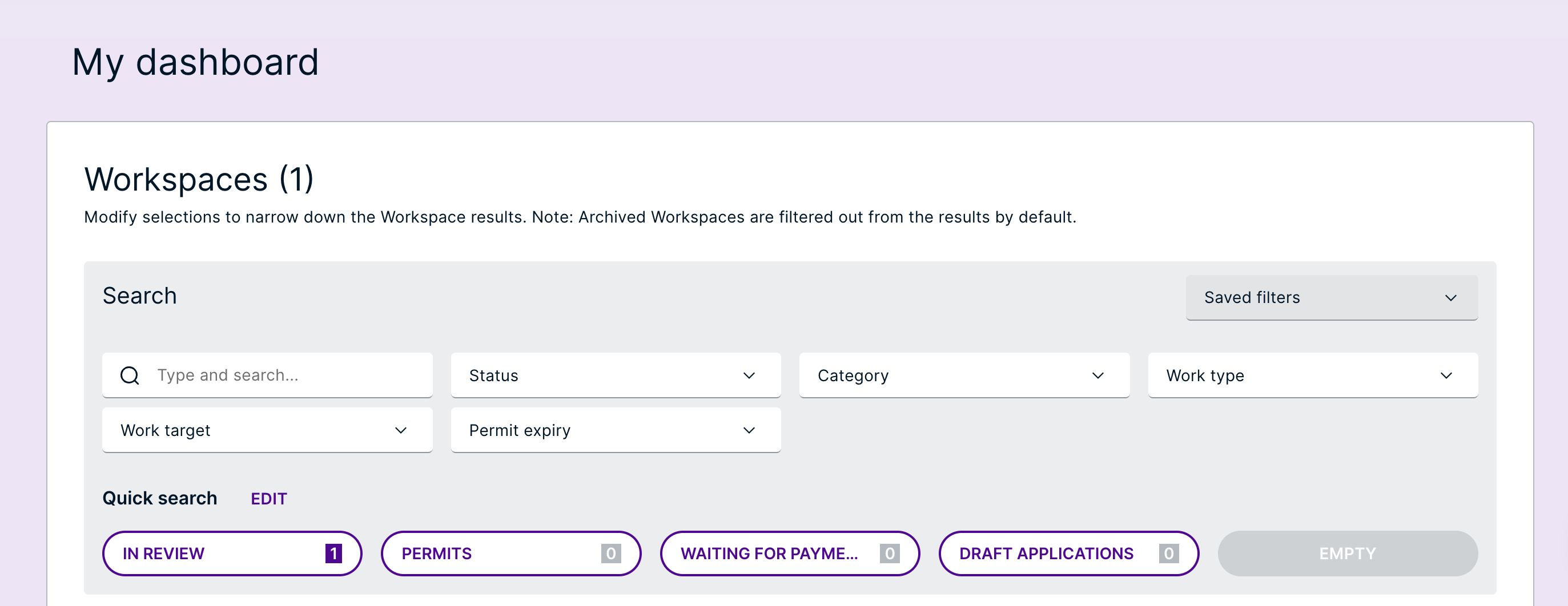
- Once logged in, you will be directed to your Cloudpermit dashboard.
- From here, you can manage permits, applications, and account settings.
Troubleshooting Login Issues
Forgot Password
If you have forgotten your password (or need to reset it), please read our How to Reset Your Cloudpermit Password article.
Incorrect Email or Password
Double-check that your email and password are entered correctly. Also, ensure Caps Lock is turned off.
Account Locked
After multiple failed login attempts, your account may be temporarily locked. Wait a few minutes and try again, or reset your password.
Browser Issues
Clear your browser cache and cookies. Try logging in using a different browser or device.
Need Additional Help?
If your login problems persist after taking these troubleshooting steps, contact Cloudpermit support.
Was this article helpful?
That’s Great!
Thank you for your feedback
Sorry! We couldn't be helpful
Thank you for your feedback
Feedback sent
We appreciate your effort and will try to fix the article