Access the complaint map for the municipality and read any instructions provided.
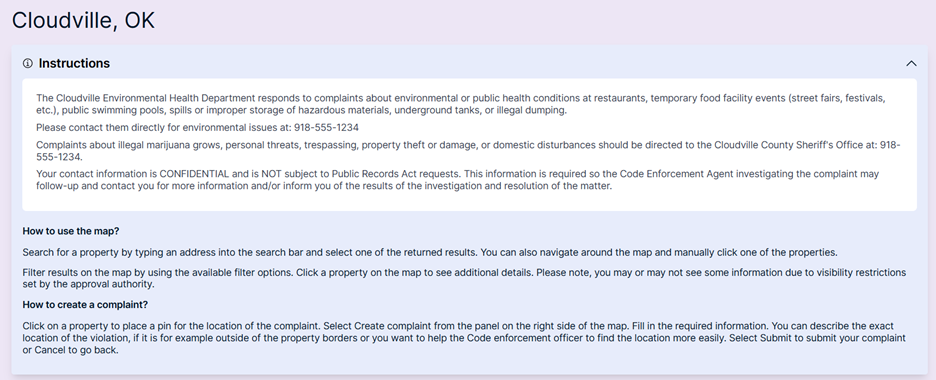
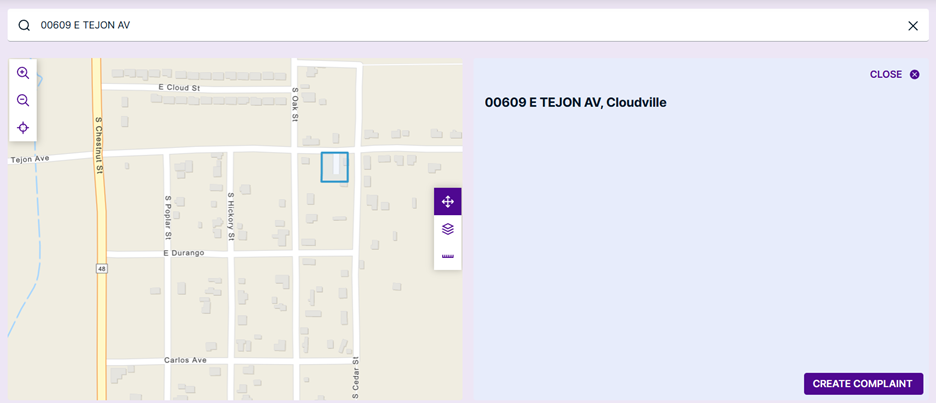
Using the search text field, type in the address of the property. Any matching addresses are displayed in the list below the address search field. Select the address row of the correct location.

Alternatively, the map is interactive and can be used to select the property. The address will automatically populate in the address field.
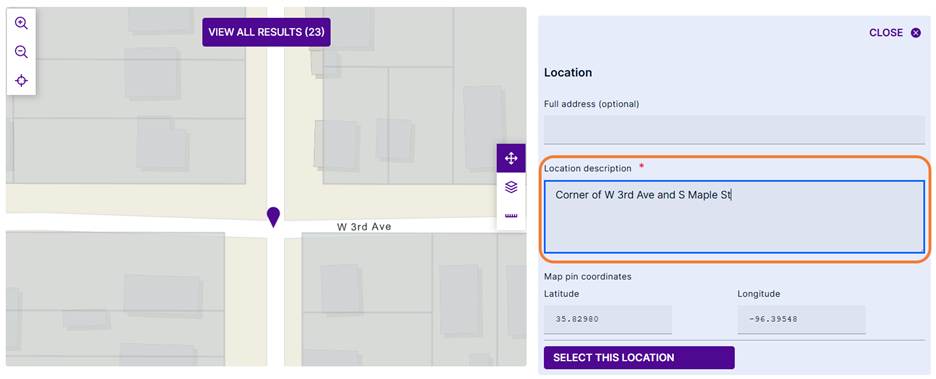
If the location cannot be found or is not on a parcel, the property location description can input manually by selecting the location on the map and inputting the location description.
The property appears on the map and a new complaint opens to the right of the map. 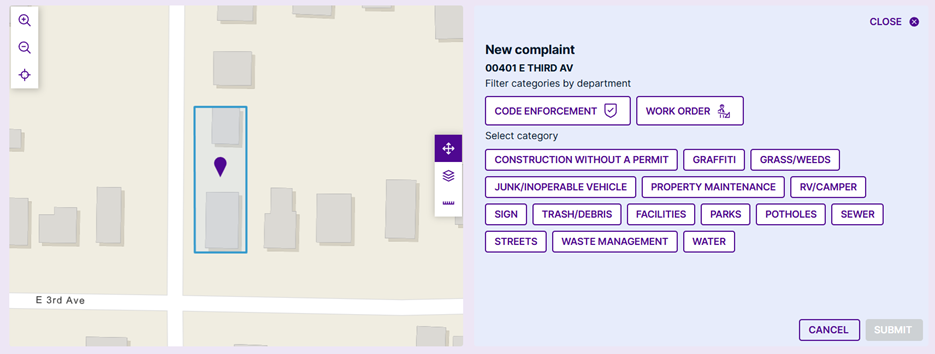
Optional filters are available by complaint type
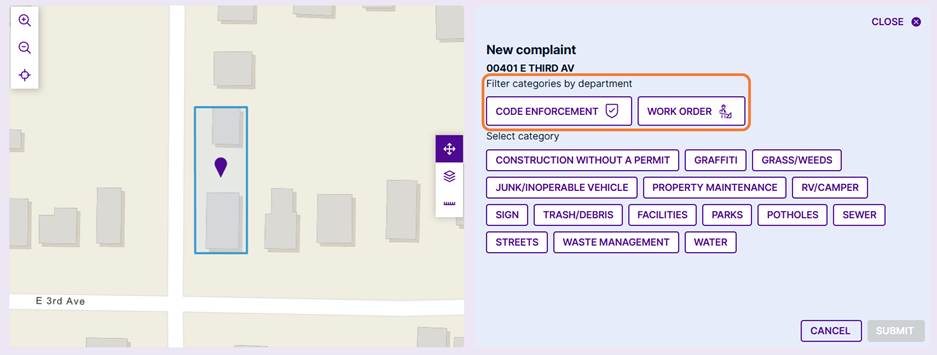
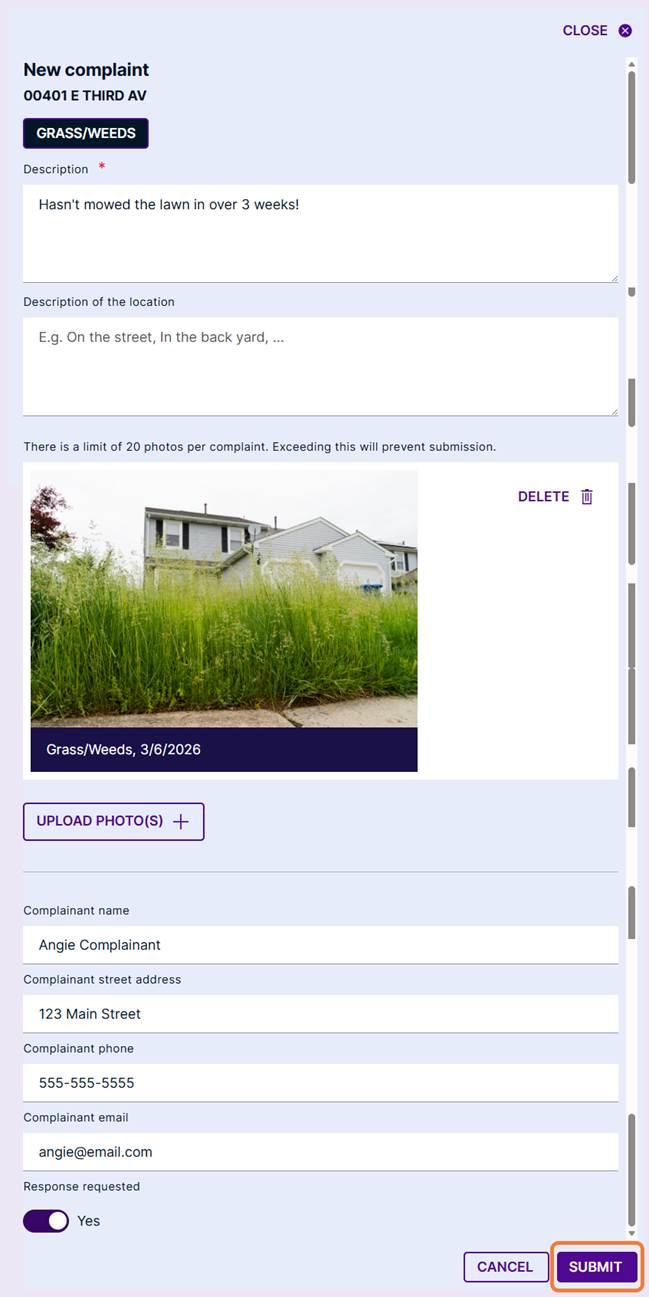
Select the category to which the complaint belongs. Write a short description of the complaint and complete all other required fields (indicated with a red asterisk).
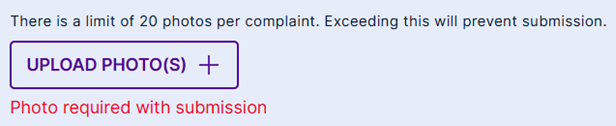
Note: If enabled, photos may be uploaded and/or required.
When all required fields are complete, click the "Submit" button.
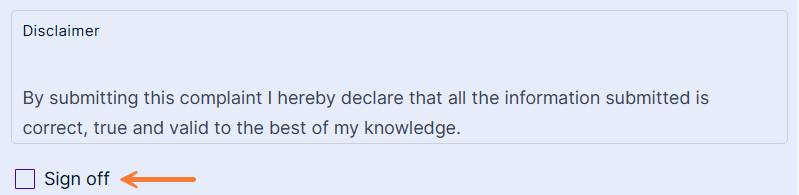
Note: If enabled, a signoff acknowledgement may be required.
The municipality has received your request and will review and process it according to their policies.

Was this article helpful?
That’s Great!
Thank you for your feedback
Sorry! We couldn't be helpful
Thank you for your feedback
Feedback sent
We appreciate your effort and will try to fix the article