An automatic email invitation is sent by the Municipality. If you don’t have a Cloudpermit account, you'll need to create one.
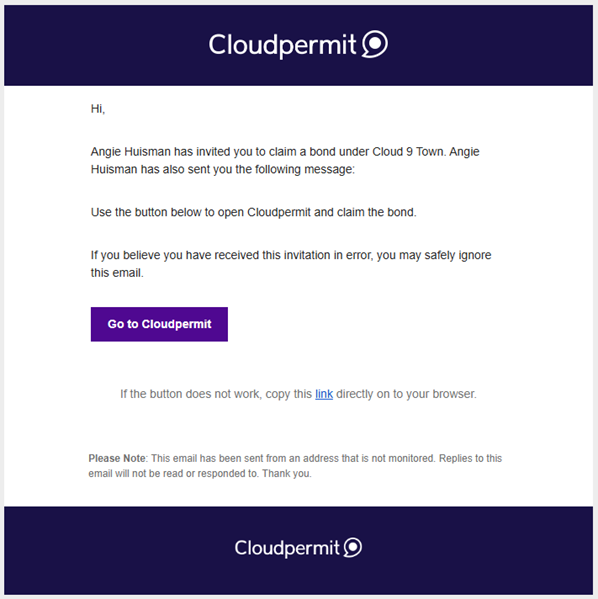
Existing users will be directed to their dashboard where the new bond has been added to the tasks and requests section.
To accept and update bond details click the Accept button.

After accepting, click the Edit Bond button.
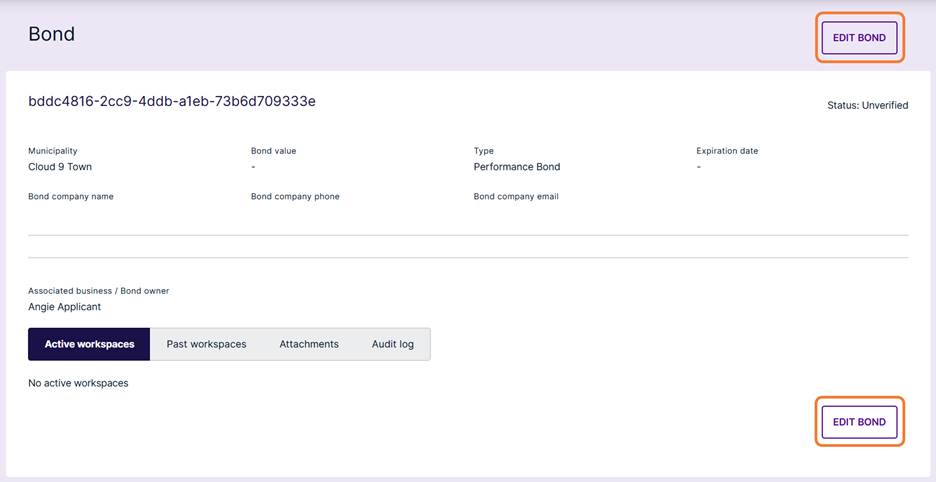
Note: The placeholder text is a unique identifier assigned by Cloudpermit and will be replaced with the Bond Number.
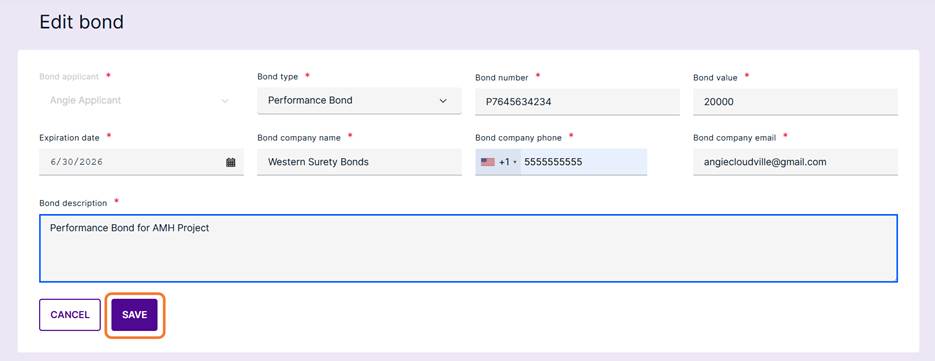
After inputting all required information click the Save button.
Note: Bond number must be a unique number.
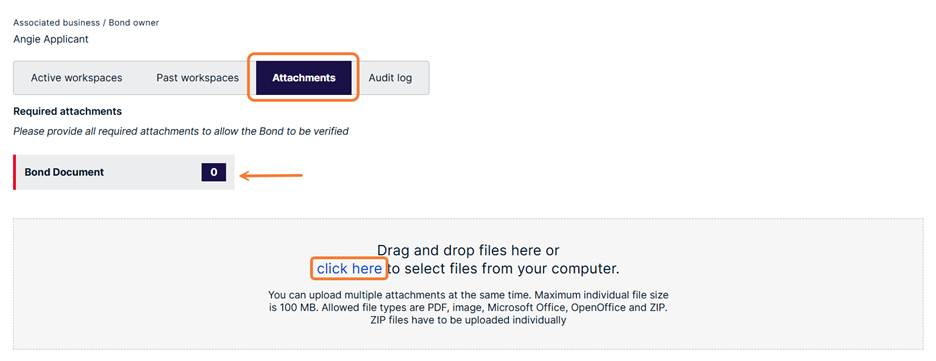
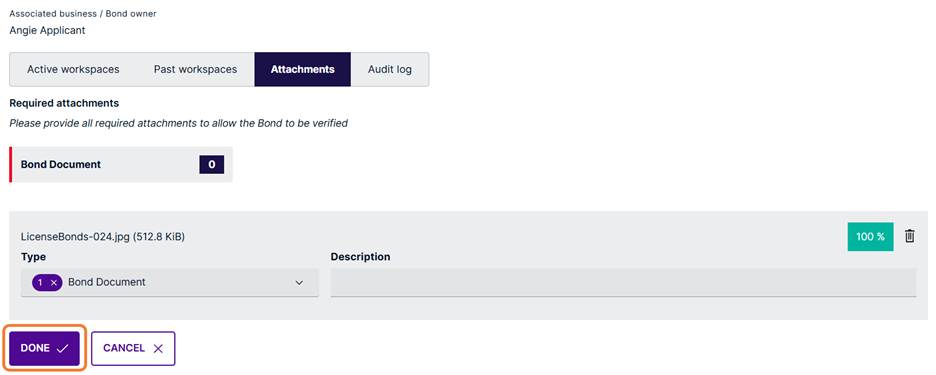
If attachments are required, they will be listed under the Attachments tab.
Click to browse for the file or drag and drop over the shaded area.
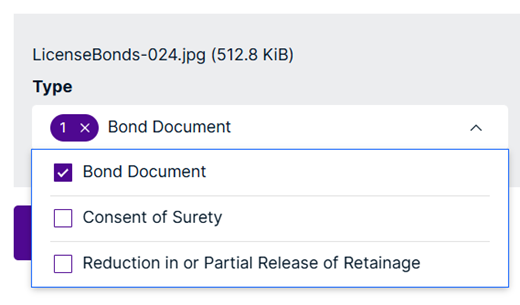
Select the type of attachment from the drop-down menu.
When finished, click the Done button.
Once verified, bonds can be associated with workspaces.
Was this article helpful?
That’s Great!
Thank you for your feedback
Sorry! We couldn't be helpful
Thank you for your feedback
Feedback sent
We appreciate your effort and will try to fix the article