Registering for a Cloudpermit account speeds up the application process. When you register for an account, you will receive a user ID and password to log into the platform. Registration takes only a few minutes, and then you can access all your applications, documents, and personal data in one place.
- Open your preferred web browser (Chrome, Edge, Safari, or Firefox).
- Navigate to your municipality's custom URL. For more information, please read our article about How to Configure Website and Portal Branding in Cloudpermit.
- Press Enter to load the login page.
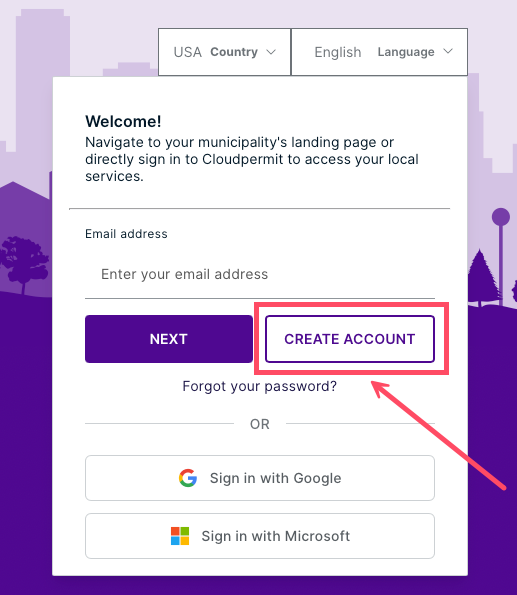
- Click CREATE ACCOUNT.
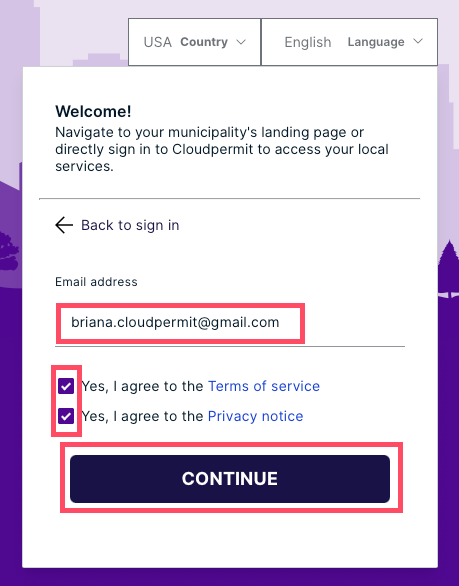
- Enter your email address. This will be your Cloudpermit username.
- Read the Terms of service, then check the box to agree.
- Read the Privacy notice, then check the box to agree.
- Click CONTINUE.
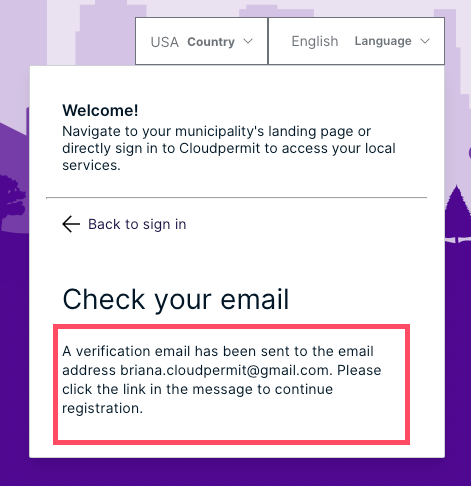
- Check your mailbox to verify the registration. Check your junk or spam folder in case the email has been flagged. If it has been more than 24 hours, you will need to request another registration email.
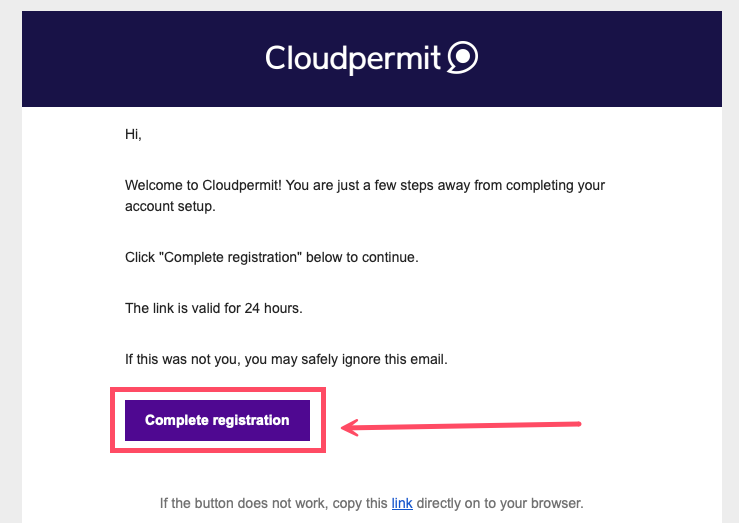
- Click Complete registration in your email verification.
- You will be redirected to Cloudpermit to complete your profile information. Your email address is displayed automatically.
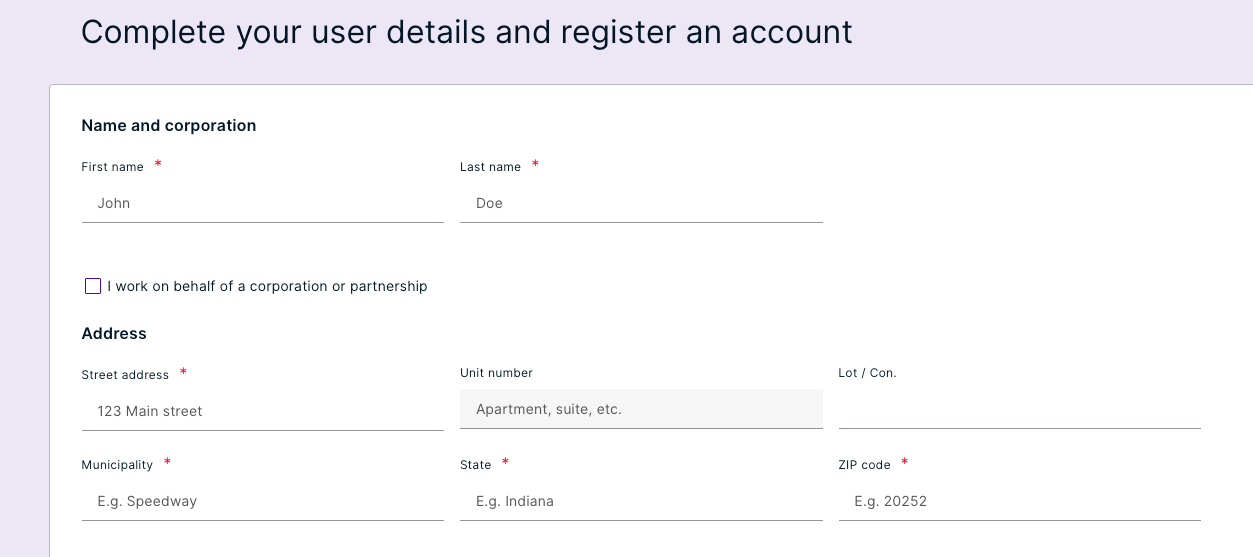
- If you are using Cloudpermit for work, follow steps 13–14.
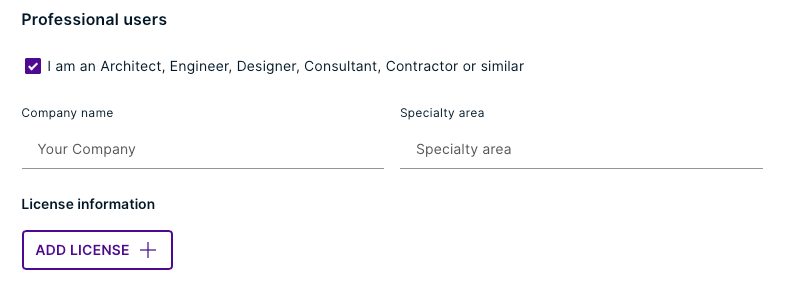
- Professional users: Check the box next to I am an Architect, Engineer, Designer, Consultant, Contractor, or similar under Professional users.
- Fill out your company's information and licenses, if applicable.
- Create a password.
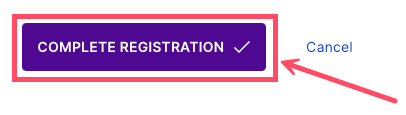
- Click COMPLETE REGISTRATION.
- The registration is complete. Welcome to Cloudpermit!
Was this article helpful?
That’s Great!
Thank you for your feedback
Sorry! We couldn't be helpful
Thank you for your feedback
Feedback sent
We appreciate your effort and will try to fix the article