When you are logged in to Cloudpermit, your dashboard includes a helpful Search feature. This makes it easier to find what you are looking for if you several multiple projects in different stages of processing or if you have applied for building or planning permits from multiple municipalities.
You can narrow down the search by choosing search criteria like the application status, the type of application category, and the municipality where the application was sent. Furthermore, you can easily search for permits that are about to expire.
To use the Search feature, take the following steps:
On your dashboard, scroll down to the Workspaces section.
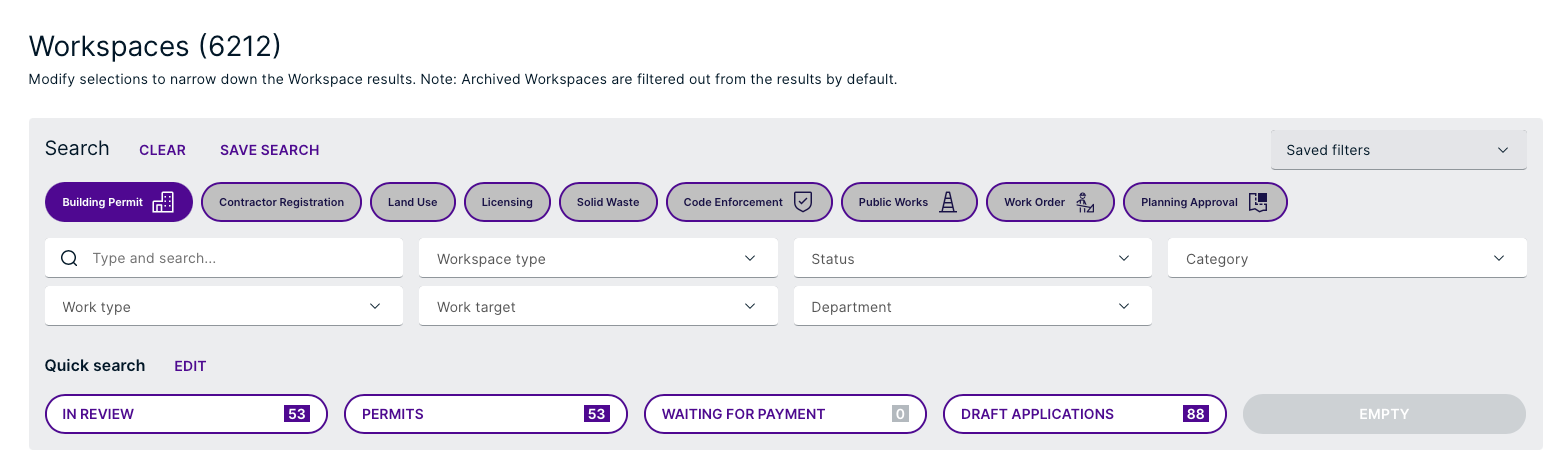
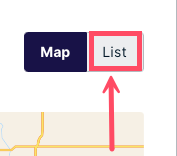
Use the Product tabs to navigate to the desired Product, or Type and search to find applications. Just type the application name, applicant name, address, PIN, etc. into the search field and let Cloudpermit show the best matches on the interactive map under Results. This can easily be changed to a list view showing workspace cards with details.
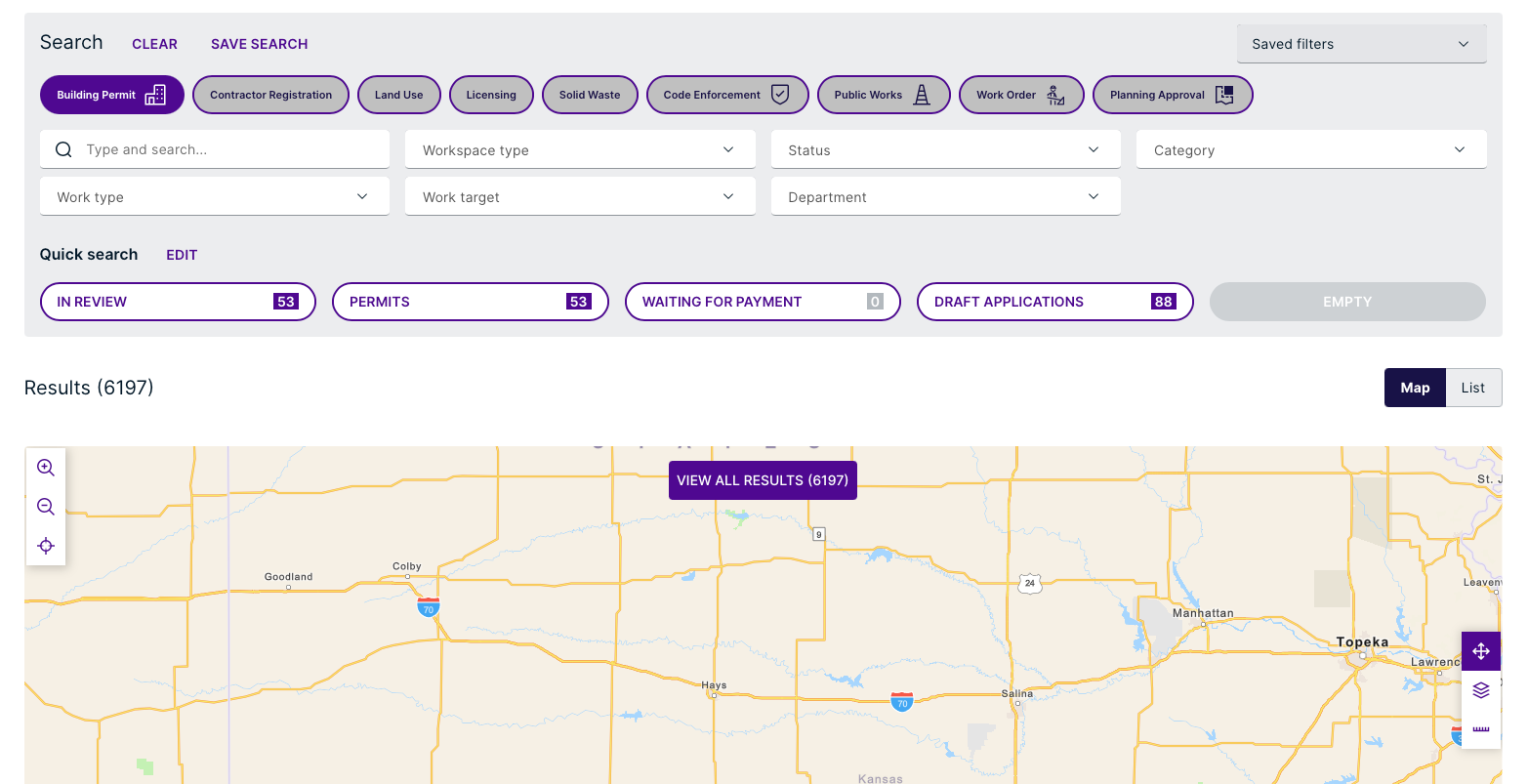
You can also use the Quick Search to filter results by status.

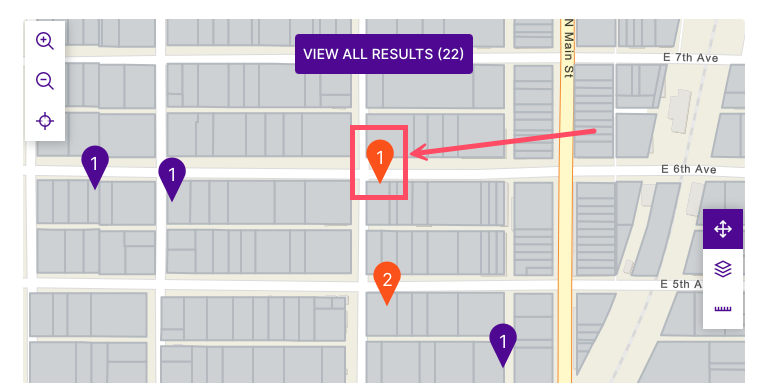
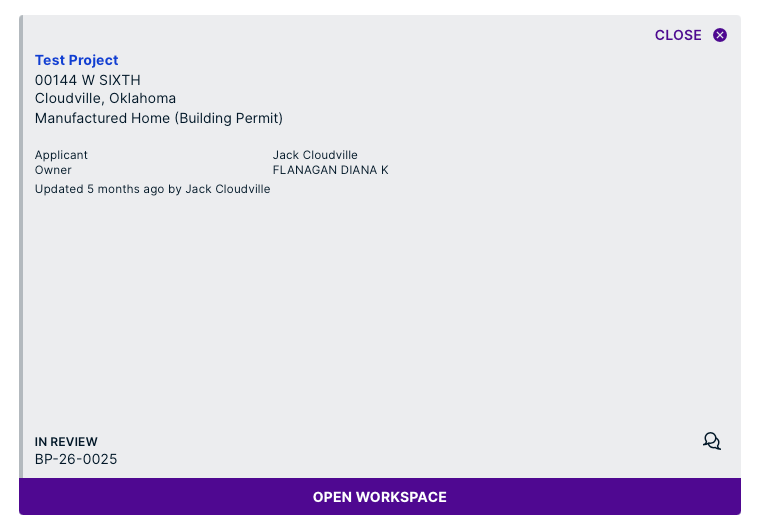
In the Results section, the search results will be displayed on the map. The map view is the default, and it allows you to open the application workspace card on the right by clicking the property pin on the map.
Was this article helpful?
That’s Great!
Thank you for your feedback
Sorry! We couldn't be helpful
Thank you for your feedback
Feedback sent
We appreciate your effort and will try to fix the article